Automation that Saves Minutes without Breaking
A workspace-ops note on automation that saves minutes without breaking, with attention to desk depth, setup friction, team reuse, and the small adjustments that still matter after the first week.
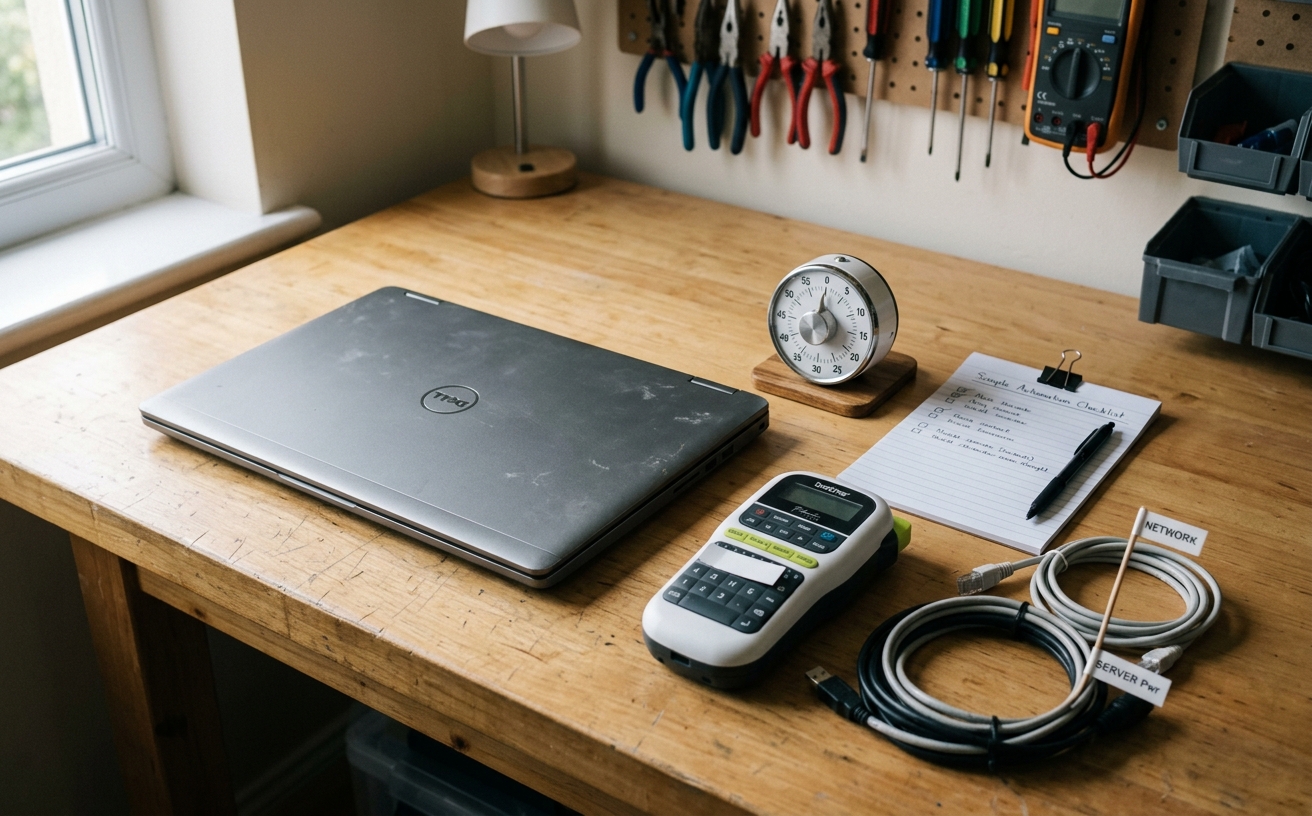
Working in a constrained physical footprint forces a strict economy of movement and hardware. When your desk is barely wide enough to accommodate a laptop and a cup of coffee, sprawling macro pads and complex multi-monitor routing systems are out of the question. Yet, the necessity for automation increases inversely with available space. Professionals navigating back-to-back video calls, deep focus blocks, and frequent travel days need systems that handle the repetitive friction of environment switching. The goal is not to build a fragile, cloud-dependent web of triggers that shatters the moment an API updates or a hotel Wi-Fi network drops. Instead, effective small-space automation relies on robust, locally executed software and micro-footprint hardware. This approach shaves minutes off daily transitions, preserves cognitive bandwidth, and ensures your workspace remains functional whether you are at a cramped apartment desk or a folding table in an airport lounge.
Hardware Macros vs. Dedicated Keyboard Layers
Physical macro pads offer undeniable tactile satisfaction, but they demand a permanent lease on your limited desk real estate. A dedicated six-key pad requires its own cable routing, constant repositioning when you need to review physical documents, and careful packing during travel days. For users with expansive setups, this is a negligible tax. In a small workspace, however, every square inch matters. The alternative is moving the automation directly into the primary input device you already use: your keyboard.
Programmable keyboards utilizing firmware like QMK or VIA allow you to map complex macros and application shortcuts to secondary layers. By repurposing a heavily accessible but rarely used key—such as Caps Lock—as a layer modifier, you gain access to dozens of shortcuts without moving your hands from the home row. This eliminates the need for auxiliary hardware entirely. Pressing Caps Lock and 'M' can instantly mute your microphone at the system level, while Caps Lock and 'C' can launch your calendar, all without adding a single wire to your desk.
The decision between a micro-pad and keyboard layers ultimately comes down to your tolerance for muscle-memory training versus physical clutter. If you frequently travel or work from varying locations, committing your macros to a programmable keyboard ensures your automations travel with you perfectly intact. Conversely, if you share your workspace or struggle with memorizing key combinations, a highly compact, two-key physical switch secured to the underside of your desk might provide the necessary tactile bypass without cluttering the surface.
Layout Management for Single-Monitor Constraints
Small desks typically dictate a single-monitor configuration, often relying solely on a laptop screen or one moderately sized external display. This limitation makes manual window management a significant source of daily friction. Dragging edges to resize browser windows, chat applications, and video conferencing tools between a morning focus block and an afternoon of repeated meetings consumes valuable minutes and disrupts concentration. Brittle automation scripts that attempt to force windows into place often fail when you disconnect from an external monitor to work from a couch or an airplane seat.
The most resilient solution is adopting a layout-state manager rather than relying on basic grid-snapping tools. Applications like Moom for macOS or DisplayFusion for Windows allow you to save exact window positions and dimensions as a unified workspace state. Instead of snapping four individual windows into quadrants every time you start a project, you trigger a single command that recalls the entire layout. These tools are specifically valuable because they can recognize changes in display resolution, automatically applying the correct saved layout whether you are docked at your desk or operating natively on the laptop.
To make this system truly invisible, tie these layout states to your calendar or a simple local hotkey. A 'Meeting Mode' layout that automatically centers your camera application, pushes reference documents to the left third of the screen, and hides your email client prevents the frantic shuffling of windows when a call begins. Because these layout managers operate locally and rely on the operating system's native window APIs, they remain stable across software updates and do not require active internet connections to function.
Audio Routing and Input Switching
Audio routing is notoriously fragile, particularly when moving between a dedicated desk setup and a mobile environment. In a small space, you might rely on a compact USB microphone, desktop speakers, and a pair of wireless earbuds for pacing during long calls. Manually opening system preferences to verify input and output sources before every meeting is a repetitive chore that frequently results in the dreaded first ten seconds of silent troubleshooting on a call.
Rather than investing in bulky physical audio mixers that consume critical desktop space, robust software routing provides a cleaner, more reliable alternative. Utilities like SoundSource on macOS or EarTrumpet on Windows sit quietly in the menu bar, offering granular control over per-application audio. More importantly, they allow you to establish persistent rules. You can force your video conferencing software to always default to your USB microphone when connected, while routing your music application exclusively through your desktop speakers, bypassing the operating system's tendency to hijack audio routes when new devices are detected.
For those who prefer a physical failsafe, the automation should be localized to a single, easily identifiable action. Mapping a global mute toggle to a specific keyboard layer or a single dedicated micro-switch attached to the side of your monitor ensures you always have hardware-level control over your microphone. This hybrid approach—software handling the complex routing rules and a single physical trigger handling the emergency mute—provides absolute confidence without requiring a six-channel mixing board on a twenty-four-inch desk.
Lighting and Environment Control
Environmental control in a small workspace often involves battling poor natural light and fluctuating temperatures. Desk lamps, dedicated key lights, and fans typically require physical interaction, pulling your attention away from the screen and adding visual clutter to the room. When your desk is tucked into a corner or a repurposed closet, reaching over monitors and laptops to toggle switches is both inconvenient and disruptive to your workflow.
Automating your environment should not rely on complex, cloud-based smart home routines that fail when your internet provider experiences an outage. The most reliable environmental automations utilize local network protocols. By connecting a compact LED panel and a small desk fan to smart plugs controlled via Apple HomeKit or a local Home Assistant instance, you remove the physical switches from your immediate workspace. This allows you to mount lighting in optimal, hard-to-reach positions without sacrificing accessibility.
The practical application of this setup is tying your environment to your active working state. A simple local script or application can monitor your system for the launch of your primary video conferencing software. When the application opens, the script triggers your local smart plug, instantly turning on your key light and adjusting your background lighting. When the call ends and the application closes, the lights power down. This saves minutes of manual adjustment daily and ensures you always present a professional image without thinking about it.
Text Expansion and Clipboard Management
The most space-efficient automations are those that exist entirely in the background, requiring zero physical hardware. Repetitive typing is a silent drain on productivity. Manually entering meeting links, standard email replies, shipping addresses, and project templates consumes significant time and introduces the potential for typographical errors. When working from a constrained space or a laptop keyboard during travel, minimizing keystrokes becomes a physical comfort issue as much as a time-saving measure.
Dedicated text expansion software like Espanso, which is open-source and operates across multiple operating systems, provides a robust solution. Unlike basic OS-level text replacements, a dedicated expander can execute local scripts, pull the current date, or position your cursor precisely within a block of pasted text. Because Espanso relies on simple text files for configuration, your snippets can be synced via any basic cloud storage folder, ensuring your automations remain identical whether you are on your main workstation or a secondary travel laptop.
Pairing text expansion with a secure, locally stored clipboard manager creates a formidable safety net for context switching. Applications like Maccy or Ditto maintain a searchable history of everything you copy, effectively eliminating the need to constantly switch back and forth between windows to transfer information. When you are operating on a single, small screen, the ability to copy three separate pieces of data from a document and paste them sequentially into an email without changing focus is a profound efficiency gain that requires absolutely no physical desk space.
Decision checklist
- Verify that all software automations execute locally to ensure functionality during travel or network outages.
- Audit your physical desk space and eliminate any macro pads or switches that are used less than three times per day.
- Configure window layout managers to automatically detect and adjust to changes in display resolution.
- Map a system-wide, global microphone mute toggle to a dedicated keyboard layer or a single, hidden micro-switch.
- Sync your text expansion snippet files via a secure, encrypted local folder rather than relying on proprietary cloud subscriptions.
Who should skip this
Professionals operating in expansive, dedicated home offices with multiple ultra-wide monitors and ample desk depth will find these micro-optimizations unnecessary. If you have the physical real estate to support a 32-button stream deck, a dedicated hardware audio mixer, and permanent, accessible lighting switches without encroaching on your primary working area, the constraints addressed here do not apply to your environment.
Maintenance note
Schedule a strict, twenty-minute audit of your active automations on the first Friday of every quarter. Software updates, changing API permissions, and shifting project requirements inevitably lead to abandoned macros and broken window routing rules. Delete any text expansion snippets you have not used in the last ninety days, verify that your local smart plugs are still responding to camera triggers, and ensure your clipboard manager's history limit is configured to clear sensitive data regularly to prevent local bloat.
The Connected Desk operates as a reader-supported publication. When you purchase hardware or software licenses through the links provided in our editorial content, we may earn a commission. We do not accept payment for placement, and our recommendations are based strictly on long-term reliability and utility in professional workspace environments.
FAQ
Do local window managers consume significant system resources on older laptops?
No. Utilities that utilize native operating system window APIs generally consume less than 50MB of RAM and negligible CPU cycles, making them perfectly safe for older or thermally constrained travel laptops.
Can I use QMK/VIA keyboard layers on a corporate machine that blocks software installation?
Yes. The primary advantage of QMK and VIA is that the macros and layers are flashed directly to the keyboard's internal memory. The keyboard presents itself to the corporate machine as a standard USB input device, requiring no local software to execute the automations.
Why avoid cloud-based smart home platforms for desk lighting?
Cloud-based platforms introduce latency and rely on external servers. If your internet connection drops, or the provider's server experiences an outage, your desk lighting will fail to trigger before a meeting. Local network protocols execute instantly and reliably.
Is it secure to use a clipboard manager for client data?
It is secure only if you configure the manager to store data locally, disable cloud syncing for the clipboard history, and set the application to automatically clear its cache upon system restart or after a specific time limit.