Desk Lamp Placement for Late Calls
A desk audit for desk lamp placement for late calls, focused on comfort, recovery time, shared-work constraints, and the details that reduce Monday-morning friction.
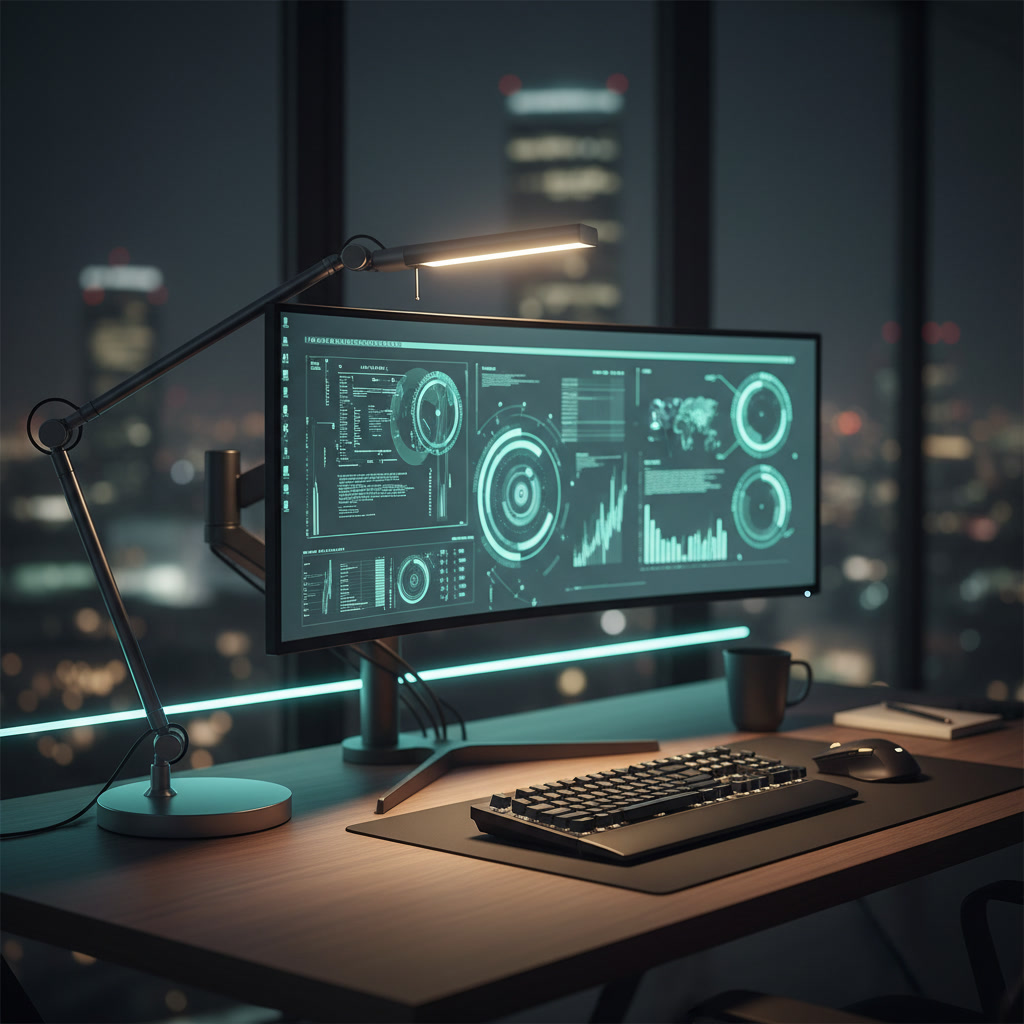
Late-night video calls demand a specific lighting geometry that standard daylight setups completely ignore. When your schedule requires bridging global time zones, catching up after consecutive travel days, or pushing through evening focus blocks, relying on overhead room lighting or a poorly positioned task lamp guarantees both severe eye fatigue and a compromised camera feed. The challenge lies in repeat use: you need a lighting configuration that flatters the webcam sensor during a midnight sync, but immediately transitions into a non-fatiguing task light for the deep work that follows. This decision guide breaks down the exact placement, angle, and intensity strategies required to build a resilient evening lighting system. We focus on practical adjustments that prevent monitor glare, eliminate harsh facial shadows, and protect your circadian rhythm, ensuring your workspace remains functional and comfortable regardless of how late the calendar dictates you work.
The Geometry of Webcam Illumination vs. Task Lighting
The fundamental conflict in evening workspace illumination is the distinction between lighting designed for the desk surface and lighting designed for the face. Traditional task lamps are engineered to point straight down, flooding your keyboard and notebooks with high-intensity photons. When you use this downward orientation during a late video call, the light bounces off the desk and monitor bezel, creating harsh, unnatural under-eye shadows while leaving the rest of your face underexposed. The webcam sensor struggles to balance this high-contrast environment, often resulting in a grainy, blown-out image that looks deeply unprofessional to clients or remote teams.
To correct this, you must adopt the 45-degree offset rule for your primary desk lamp. Instead of positioning the base directly next to your monitor and pointing the head at your face, move the lamp slightly behind the monitor plane and offset it 30 to 45 degrees to either your left or right. This placement creates dimensional, soft illumination across your features. It provides the webcam with enough continuous light to lower its ISO and clean up the image, while preventing the beam from shining directly into your retinas and causing immediate fatigue.
For professionals who wear glasses, this offset placement is non-negotiable, but it requires an additional vertical adjustment. Direct lateral lighting will immediately reflect in your lenses, creating bright white squares that obscure your eyes on camera. To eliminate lens glare, raise the lamp head at least six inches above your eye level and tilt the beam downward at a steep angle. This specific geometry forces the reflection of the light source down toward your keyboard, entirely out of the webcam's line of sight, while still providing ample illumination for the call.
Managing Eye Strain During Back-to-Back Evening Sessions
Managing physiological eye strain is the most critical factor when your workflow involves back-to-back evening sessions. The human eye rapidly fatigues when forced to constantly adjust between a bright focal point—like a glowing monitor or a harsh desk lamp—and the dark periphery of an unlit room. This extreme contrast forces the pupil to continuously dilate and constrict as your gaze shifts around the desk. Over the course of a two-hour late-night project review, this micro-muscular exertion manifests as severe tension headaches, dry eyes, and a sharp drop in cognitive endurance.
The solution is to use your desk lamp to raise the ambient base exposure of the room rather than using it as a direct spotlight. If your lamp has an articulating head, turn it 180 degrees away from your face and bounce the light off the wall behind your monitor. This technique, known as bias lighting, creates a massive, soft wash of illumination that reduces the relative brightness of your screens. By softening the hard edge between the monitor and the dark room, you significantly reduce the workload on your optic nerves during extended evening maintenance tasks.
A highly functional workspace must also support the immediate transition from collaborative call mode to isolated focus mode. Once the video sync concludes, leaving your lamp in a bounced, ambient position might not provide enough localized light for reviewing physical documents or sketching out system architectures. This is where a lamp with a highly articulated, counterbalanced arm proves essential. You need the mechanical freedom to pull the light source down from its elevated webcam position and hover it inches above your notebook, instantly signaling a psychological and environmental shift into deep, solitary work.
Color Temperature and Intensity Control for Late Hours
Color temperature control dictates how your environment feels and how your camera processes your image after sunset. Desk lamps emitting 5600K to 6500K mimic midday sunlight. While excellent for reviewing color-accurate prints, this clinical, blue-heavy spectrum looks incredibly harsh on a webcam at night and actively suppresses melatonin production, making it difficult to wind down after your work is complete. For late calls, dialing your lamp's color temperature down to a warmer 3200K to 4000K range flatters skin tones, matches the practical lighting in most residential spaces, and reduces visual harshness.
Alongside color temperature, precise brightness attenuation is mandatory for repeat evening use. When your eyes are already compromised from a full day of travel or intense focus blocks, a lamp that only offers three rigid brightness presets will inevitably be either too dim for the camera or painfully bright for your eyes. You require a light source with step-less, continuous dimming. This allows you to fine-tune the output to the exact lumen count necessary to satisfy the webcam sensor without causing you to squint during a crucial late-night negotiation.
Consistency across these settings prevents setup friction. There is nothing more disruptive than logging into a midnight sync and spending the first three minutes fighting with touch-sensitive sliders in a dark room because your lamp reset to its default maximum brightness. Hardware matters here. Prioritize desk lamps equipped with physical dials or reliable memory functions that recall your exact color and intensity settings from the previous evening. This mechanical reliability ensures your workspace is instantly ready for professional communication the moment you sit down.
Structural Placement: Clamp Mounts vs. Freestanding Bases
Structural placement on the desk surface directly impacts your operational efficiency. Heavy, freestanding lamp bases provide excellent stability, but they consume a massive footprint in the most valuable zone of your workspace. When you are deep into late-night maintenance tasks, you need that exact lateral space for reference tablets, physical notebooks, or a secondary keyboard. A bulky base forces you to position the light sub-optimally simply to clear room for your tools, compromising both your lighting geometry and your ergonomic reach.
Edge-clamped articulating arms offer a superior structural solution for premium setups. By anchoring the light source to the rear edge of the desk or the central monitor pole, you completely eliminate the footprint issue. More importantly, a clamp mount allows the lamp head to float high above the monitor line, providing the optimal downward angle for video calls. When you need to adjust your webcam angle or shift to a standing position, the floating arm can be swung out of the frame or repositioned instantly without dragging a heavy base across your desk mat.
Permanent clamp setups do introduce cable management challenges that must be addressed to maintain a visually quiet workspace. Dangling power cords not only look chaotic on camera if they slip into the frame, but they also catch on monitor corners during repeated physical adjustments. Route the lamp's power cable tightly along the articulating arm using velcro ties or built-in channels, and run it down the back of the desk leg. This ensures the mechanical joints move freely and your workspace remains functionally unobstructed, regardless of how often you reposition the light throughout the evening.
Bouncing and Diffusing: Advanced Techniques for Harsh Lamps
If your current desk lamp emits a harsh, highly directional beam that cannot be adjusted via color temperature or dimming, you must employ advanced diffusion techniques. The most effective method is utilizing the architecture of your room. By aiming the lamp head directly at a neutral-colored wall or ceiling, you convert a small, harsh point source into a massive, soft reflector. This bounced light wraps around your face, filling in shadows and providing a highly professional, studio-quality look on your webcam without requiring specialized photography equipment.
Bouncing light does have limitations; it drastically reduces the overall intensity of the lamp, and if your walls are painted a distinct color, the light will carry that color cast onto your face. When bouncing is not viable, you must introduce physical diffusion. This can be achieved by selecting architectural desk lamps that feature built-in edge-lit panels or frosted acrylic diffusers. These materials scatter the photons before they hit your face, softening the micro-contrast and eliminating the harsh specular highlights that make you look sweaty or fatigued on camera.
The ultimate goal is building a repeatable, frictionless system. You should not have to reinvent your lighting geometry every time a late call hits your calendar. Once you find the perfect height, offset angle, and tilt for your specific seating position and webcam, mark the hardware. Place tiny, discreet strips of matte black tape on the lamp's articulation joints or the monitor arm. These tactile indicators allow you to instantly return the lamp to its exact optimal position for video calls, ensuring your setup remains a tool for productivity rather than a nightly chore.
Decision checklist
- Position the primary lamp head at least three inches above your webcam line to prevent direct lens flare and harsh under-eye shadows.
- Offset the lamp 30 to 45 degrees to your left or right to create dimensional facial lighting rather than flat, blinding front illumination.
- Angle the beam slightly downward toward your chest rather than directly at your face to utilize the ambient bounce from your clothing and desk surface.
- Verify that your lamp's base or clamp does not interfere with your mouse hand's maximum range of motion during intensive focus blocks.
- Set your color temperature between 3200K and 4000K to avoid the clinical, high-fatigue blue spectrum during late-night hours.
Who should skip this
Professionals who exclusively take calls during standard business hours in rooms with abundant, well-managed natural light can bypass these specific placement strategies. Additionally, users who rely on dedicated, permanent studio key lights rather than dual-purpose desk lamps will not need to manage the transition between task lighting and facial illumination.
Maintenance note
Maintain your lighting setup by wiping the diffuser panel weekly with a dry microfiber cloth to prevent dust buildup from scattering the light unevenly. Every few months, check and tighten the tension bolts on articulating arms to ensure the lamp head does not slowly droop into your camera frame during extended evening meetings.
The Connected Desk funds its editorial operations through reader-supported affiliate links. Purchasing hardware through our links may earn us a commission, but this revenue model never dictates the structural recommendations, workspace methodologies, or hardware placement strategies detailed in our guides.
FAQ
Why does my desk lamp make me look washed out on late calls?
Direct, undiffused light placed too close to the face overexposes the webcam sensor, causing it to blow out your highlights. You need to bounce the light off a wall, use a physical diffuser, or angle the lamp downward to use the desk surface as a softer reflector.
Can I use a monitor light bar instead of a desk lamp for video calls?
Monitor light bars are engineered strictly for downward desk illumination and screen glare reduction. Because they sit directly above the screen and point straight down, they cast severe shadows over your eyes and nose, making them highly unsuitable as primary webcam lights.
Where should I place my lamp if I wear glasses to avoid glare?
Raise the lamp significantly higher than your eye level and angle it downward at a steep degree. This geometry pushes the reflection of the light source down toward your desk and completely out of the camera's view of your lenses.
Is it better to have the lamp on the left or right side of the monitor?
Place it on the side opposite your room's primary ambient light source, such as a hallway spill or a window, to balance the exposure on your face. If your room is entirely dark, match the placement to the side of your primary application window if you use a dual-screen setup.