Monitor Size for Split-screen Work
A desk audit for monitor size for split-screen work, focused on comfort, recovery time, shared-work constraints, and the details that reduce Monday-morning friction.
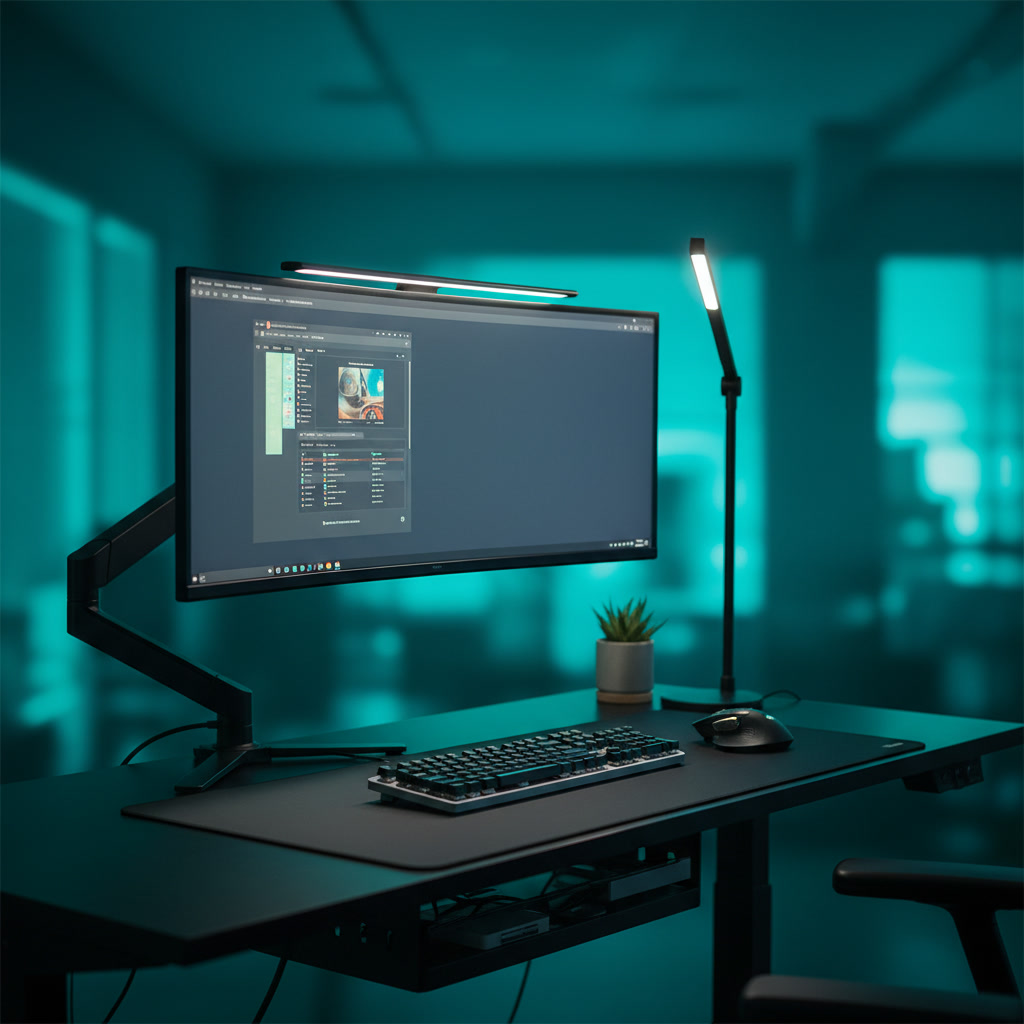
The pursuit of the perfect split-screen monitor setup often derails into an arms race of extreme curvatures and overwhelming pixel counts, but practical productivity demands a different metric: physical and visual endurance. When your workday involves shifting between back-to-back video calls, deep-focus spreadsheet analysis, and the inevitable fatigue of travel days, your display needs to support sustained attention rather than command it. Choosing the right monitor size for side-by-side windows is less about maximizing screen real estate and more about matching physical dimensions to your natural field of vision, desk depth, and neck mobility. A well-proportioned screen allows you to reference a document on the left while writing on the right without inducing the repetitive strain of constant head-turning or the eye fatigue of squinting at scaled-down text.
The 27-Inch Standard and the Dual-Monitor Alternative
The 27-inch monitor with a standard widescreen aspect ratio remains the baseline standard for professional workspaces, offering a familiar canvas for side-by-side applications. At a high resolution, a 27-inch display provides enough pixel density to render two vertical documents with crisp, legible typography. This configuration mimics the physical experience of having two standard sheets of paper on your desk. For professionals who spend their days cross-referencing documents against email clients, this size offers immediate familiarity without demanding significant physical desk space or deep focal adjustments.
However, the common practice of placing two 27-inch monitors side-by-side often introduces severe ergonomic compromises. When two screens meet in the middle, the physical bezel gap sits exactly where your natural, neutral gaze falls. This forces you to angle your neck slightly left or right for hours at a time to view your primary application. Over weeks of intense project work, this sustained asymmetrical posture frequently manifests as chronic neck stiffness and shoulder tension, completely undermining the productivity benefits of the expanded digital real estate.
To utilize a single 27-inch screen effectively for split-screen work, your desk depth should measure between 24 and 28 inches. This allows the monitor to sit at an arm's length away, ensuring the entire display remains within your primary field of vision without requiring head movement. While a single 27-inch panel is highly efficient, users who heavily rely on complex, multi-column spreadsheets or dense project management timelines often find the horizontal constraint claustrophobic, prompting the search for wider alternatives that maintain ergonomic integrity.
The 34-Inch Ultrawide Sweet Spot
The 34-inch ultrawide monitor, featuring a 21:9 aspect ratio, represents the ergonomic sweet spot for dedicated split-screen workflows. By expanding the horizontal space without increasing the vertical height beyond that of a standard 27-inch display, it provides the exact dimensions necessary to house two full-width desktop applications side-by-side. You can maintain a primary text editor directly in front of your neutral spine while keeping a browser or reference document comfortably in your peripheral vision, entirely eliminating the disruptive central bezel gap of dual-monitor setups.
At 34 inches of width, the introduction of a subtle panel curvature becomes a functional necessity rather than an aesthetic luxury. A gentle curve brings the far left and right edges of the screen slightly forward. This ensures that the focal distance between your eyes and the center of the screen is nearly identical to the distance between your eyes and the edges. Maintaining a uniform focal depth drastically reduces the ciliary muscle fatigue associated with constantly refocusing as your eyes dart between side-by-side windows.
Maximizing the comfort of a 34-inch ultrawide requires strict adherence to digital hygiene and window management. Manually dragging and resizing windows across a wide canvas introduces unnecessary cognitive friction and physical mouse travel. Utilizing native operating system features ensures your applications lock into perfect halves or thirds instantly. This structured approach to screen real estate prevents the visual clutter of overlapping windows, allowing you to transition smoothly from deep focus blocks to administrative tasks.
The 38-Inch to 40-Inch Ultra-Wide Expansion
Stepping up to a 38-inch or 40-inch ultrawide display introduces a critical vertical advantage, shifting the aspect ratio to provide more headroom. This additional vertical height is invaluable for professionals who process massive volumes of sequential data, such as software developers reading long blocks of code or financial analysts reviewing extensive ledgers. The extra vertical pixels allow you to see more rows of information simultaneously, reducing the repetitive strain of continuous scrolling while maintaining the expansive horizontal width for side-by-side application placement.
Accommodating these massive displays requires a fundamental reassessment of your physical workspace infrastructure. A 38-inch or 40-inch monitor demands a desk depth of at least 30 inches to safely push the screen back. If positioned too closely on a shallow desk, the sheer volume of the display will overwhelm your peripheral vision, forcing you to physically pan your head to read text at the margins. This repetitive panning motion mimics the exact ergonomic hazard of poorly positioned dual monitors, defeating the purpose of a single, unified screen.
Furthermore, the high pixel density of modern 40-inch monitors introduces the complex variable of operating system scaling. To prevent eye strain from microscopic text, users typically must scale the interface significantly. While this results in incredibly sharp, paper-like typography that reduces visual fatigue during long reading sessions, it inherently reduces the mathematical amount of usable split-screen real estate. You are essentially prioritizing superior text clarity and reduced eye strain over a raw increase in the number of windows you can display.
The 49-Inch Super Ultrawide Warning
The 49-inch super ultrawide monitor, boasting a 32:9 aspect ratio, is mathematically equivalent to placing two 27-inch monitors side-by-side without the central bezel. While visually striking and frequently marketed as the ultimate productivity solution, this size category often prioritizes novelty over sustained human comfort. Managing applications across nearly four feet of horizontal illuminated surface requires immense discipline, as the sheer width of the display encourages sprawling, disorganized window placement that can quickly overwhelm your visual processing capacity during high-stress work periods.
The primary ergonomic hazard of the 49-inch display lies in its extreme margins. Unless you possess an unusually deep desk, viewing information placed at the far left or far right edges requires significant rotation of the cervical spine. Over the course of an eight-hour workday, this continuous twisting motion leads to cumulative muscular fatigue in the neck and upper back. To avoid this, users inevitably end up constraining their active work to the center of the screen, leaving the outer edges relegated to static, low-priority applications.
There are, however, highly specific workflows where a 49-inch super ultrawide is the correct tool for the job. Video editors managing massive horizontal timelines, audio engineers working with dozens of simultaneous tracks, and logistics coordinators monitoring expansive dispatch dashboards benefit immensely from the uninterrupted horizontal flow. But for standard knowledge workers whose days consist of writing, researching, and attending virtual meetings, the physical toll of navigating a 49-inch canvas rarely justifies the investment, making a smaller, more focused display the wiser choice for long-term comfort.
Desk Depth and Ergonomic Positioning
Regardless of the monitor size you select for split-screen work, the physical depth of your desk dictates the success or failure of the setup. Desk depth controls your focal distance, which is the primary defense against digital eye strain. A standard 24-inch deep desk is entirely inadequate for anything wider than 27 inches, as it forces the illuminated panel too close to your face. Upgrading to a 30-inch or 36-inch deep worksurface provides the necessary physical buffer to properly frame an ultrawide monitor within your comfortable field of view.
Reclaiming desk space and achieving precise ergonomic positioning requires abandoning the factory monitor stand in favor of a heavy-duty, articulating monitor arm. Factory stands on ultrawide monitors are notoriously deep, often consuming up to a foot of desk depth just to remain stable. A high-quality monitor arm pushes the display to the absolute rear edge of the desk while allowing you to make micro-adjustments to the height and tilt throughout the day. This adaptability is crucial for maintaining proper posture as your body naturally fatigues and settles during long focus blocks.
Finally, wide monitors act as massive mirrors for ambient light, complicating workspace illumination. The wider the screen, the more likely it is to catch reflections from nearby windows or overhead fixtures, forcing you to squint through the glare. Managing this requires careful placement of task lighting and the implementation of bias lighting—a soft, diffuse light placed behind the monitor. Bias lighting reduces the harsh contrast between the bright screen and the darker wall behind it, significantly lowering visual fatigue when working through the late afternoon and into the evening.
Decision checklist
- Measure your desk depth: ensure at least 28 inches of depth for monitors 34 inches or wider to maintain a healthy focal distance.
- Verify your operating system's native window management tools or install reliable third-party snapping utilities to eliminate manual window dragging.
- Confirm your computer's integrated graphics or dedicated GPU can drive ultrawide resolutions at a minimum refresh rate of 60Hz.
- Calculate the required text scaling for your chosen resolution and physical size to ensure side-by-side documents remain legible without leaning forward.
- Check the weight capacity and VESA mount compatibility of your current monitor arm if upgrading to an ultrawide display.
Who should skip this
People who only use a single full-screen application at a time, or those whose primary work involves color-critical print design where curved panels distort straight lines, should avoid ultrawide split-screen setups entirely. If your workflow relies heavily on a single focal point—like writing in a distraction-free text editor or reviewing individual photographs—a standard 27-inch flat panel offers superior uniform brightness and zero geometric distortion without the physical footprint of a wider display.
Maintenance note
Large monitor surfaces accumulate dust and skin oils rapidly, especially if you adjust them manually throughout the day. Clean the panel weekly using a dry, clean microfiber cloth designed specifically for optics, applying absolutely no pressure to the anti-glare coating. For stubborn smudges, lightly dampen the cloth with distilled water—never use household glass cleaners, alcohol, or paper towels, which will permanently degrade the matte finish and exacerbate eye strain from uneven glare.
The Connected Desk is an independent editorial publication funded by our readers. We may earn a commission when you purchase workspace equipment through the retail links in our guides, which supports our ongoing research and editorial operations without influencing our recommendations.
FAQ
Does a curved monitor distort text in split-screen mode?
A moderate curve does not noticeably distort text for the primary user sitting at the focal apex. In fact, it improves legibility on screens wider than 34 inches by keeping the edges of your side-by-side windows at a consistent distance from your eyes, reducing the need to refocus.
Can I use a television as a split-screen monitor?
While technically possible, televisions lack the pixel density, text-rendering clarity, and ergonomic adjustability required for sustained desk work. Using a large television at standard desk depths typically results in severe neck strain and eye fatigue due to the aggressive viewing angles required to see the corners.
How do I manage screen sharing with an ultrawide monitor?
Sharing a wider aspect ratio screen on standard video calls will result in massive black bars for your colleagues viewing on standard laptop screens. You must use window-specific sharing rather than full-screen sharing, or utilize software utilities that create virtual monitor zones for presentation purposes.
Is a single 34-inch ultrawide better than two 24-inch monitors?
For split-screen comfort, a single 34-inch ultrawide is generally superior because it eliminates the central bezel gap. Dual monitors inevitably force you to look slightly left or right of center for your primary task, whereas a single ultrawide allows you to place your most important window directly in front of your neutral spine position.
Commercial decision framework
For effective split-screen multitasking, a 27-inch monitor is the absolute minimum, but ultrawide 34-inch displays offer the most natural dual-window experience without a bezel down the middle. Dual 27-inch setups remain the standard for heavy data processing, but they demand significant desk depth. Choose a single ultrawide if your work relies on horizontal timelines or side-by-side reference documents, and stick to dual standard monitors if you need strict application separation.
Requires simultaneous viewing of source material and active documents. Best served by a single 34-inch ultrawide that eliminates the central bezel while providing enough horizontal pixels for two full-width text windows.
Manages massive spreadsheets alongside live dashboards. Dual 27-inch monitors provide the strict physical separation needed to keep static reference data isolated from active data entry environments.
Works primarily in video editing or audio production software. A 38-inch or 49-inch super-ultrawide display is essential to stretch timelines horizontally without breaking the interface across multiple screens.
Check: 16:9 versus 21:9 versus 32:9 formats.
Why it matters: Determines how many full-sized application windows can comfortably sit side-by-side without requiring horizontal scrolling.
Check: 1080p versus 1440p versus 4K at specific screen sizes.
Why it matters: Text clarity degrades quickly on screens larger than 27 inches if the resolution does not scale proportionally, causing eye strain during document review.
Check: Flat panels versus 1800R, 1500R, or 1000R curves.
Why it matters: Extreme curves reduce neck movement on displays wider than 34 inches by keeping the edges of the screen at a uniform focal distance.
Check: Monitor stand footprint and required screen proximity.
Why it matters: Large displays require at least 30 inches of desk depth to maintain ergonomic viewing distances and prevent visual fatigue.
Check: Built-in picture-by-picture capabilities or proprietary desktop partition software.
Why it matters: Hardware-level split-screen allows you to connect two different computers to one monitor and view them simultaneously.
Shortlist by segment
Best for: General office multitasking, side-by-side document editing, and replacing dual 24-inch monitors.
Watch out: Vertical screen height is identical to a standard 27-inch monitor, which may feel restrictive for vertical coding environments.
Best for: High-resolution text work, strict application separation, and modular setups where one screen is rotated vertically.
Watch out: Requires a heavy-duty dual monitor arm and creates a physical bezel gap directly in your center line of sight.
Best for: Financial trading, complex video editing timelines, and replacing dual 27-inch setups entirely without bezels.
Watch out: Massive desk footprint, heavy weight requires specialized mounting hardware, and aggressive curves can distort straight lines in design work.
Best for: Creative professionals needing high pixel density and users who prefer a four-quadrant window grid over side-by-side splits.
Watch out: Requires operating system scaling to make text readable, which reduces the actual usable workspace compared to native resolution.
Implementation checks
- Measure your desk depth from the front edge to the wall; displays over 32 inches require a minimum depth of 30 inches for comfortable viewing.
- Check your computer graphics card specifications to confirm it can output 4K or ultrawide resolutions at a minimum of 60Hz.
- Use a tape measure to mock up the physical width of the monitor on your desk to ensure it clears nearby shelves or speakers.
- Verify the weight of the monitor without its stand if you plan to use an existing monitor arm, ensuring it falls within the arm tension capacity.
- Test your current operating system native window snapping features to see if you need third-party software to manage a wider screen.
Retailer checklist
- Verify the return policy covers dead pixels, as acceptable defect thresholds vary significantly between manufacturers.
- Check if the included stand offers height, tilt, and swivel adjustments, or if you will need to purchase a separate VESA arm.
- Confirm the specific HDMI or DisplayPort version supported by both the monitor and your computer to ensure full resolution at 60Hz or higher.
- Look for hardware-level low blue light certification rather than just software filters if you work long hours.
- Ensure the retailer ships the monitor in an overbox, as shipping labels directly on the manufacturer packaging invite theft.
- Review the warranty terms for burn-in coverage if you are purchasing an OLED panel for static office applications.
FAQ
Is a single ultrawide better than two standard monitors for productivity?
It depends on your workflow. A single ultrawide eliminates the center bezel, making it superior for wide timelines and fluid window placement. Dual monitors are better if you need strict, full-screen separation for different applications or want to run one screen vertically.
What is the minimum resolution I need for a 34-inch split-screen setup?
You should aim for at least 3440 by 1440. A lower resolution like 2560 by 1080 on a screen that size results in poor pixel density, making text appear jagged and causing eye strain during extended reading.
Can I connect two different laptops to one ultrawide monitor?
Yes, provided the monitor supports Picture-by-Picture. This feature splits the screen down the middle, displaying the input from one computer on the left and the other on the right, effectively acting as two seamless monitors.
Do curved monitors distort text and spreadsheets?
Gentile curves do not noticeably distort text and actually help keep the edges of a wide screen in focus. However, aggressive curves can make straight lines appear slightly bowed, which may bother graphic designers or architects.