Webcam Height and Background Control
A workspace-ops note on webcam height and background control, with attention to desk depth, setup friction, team reuse, and the small adjustments that still matter after the first week.
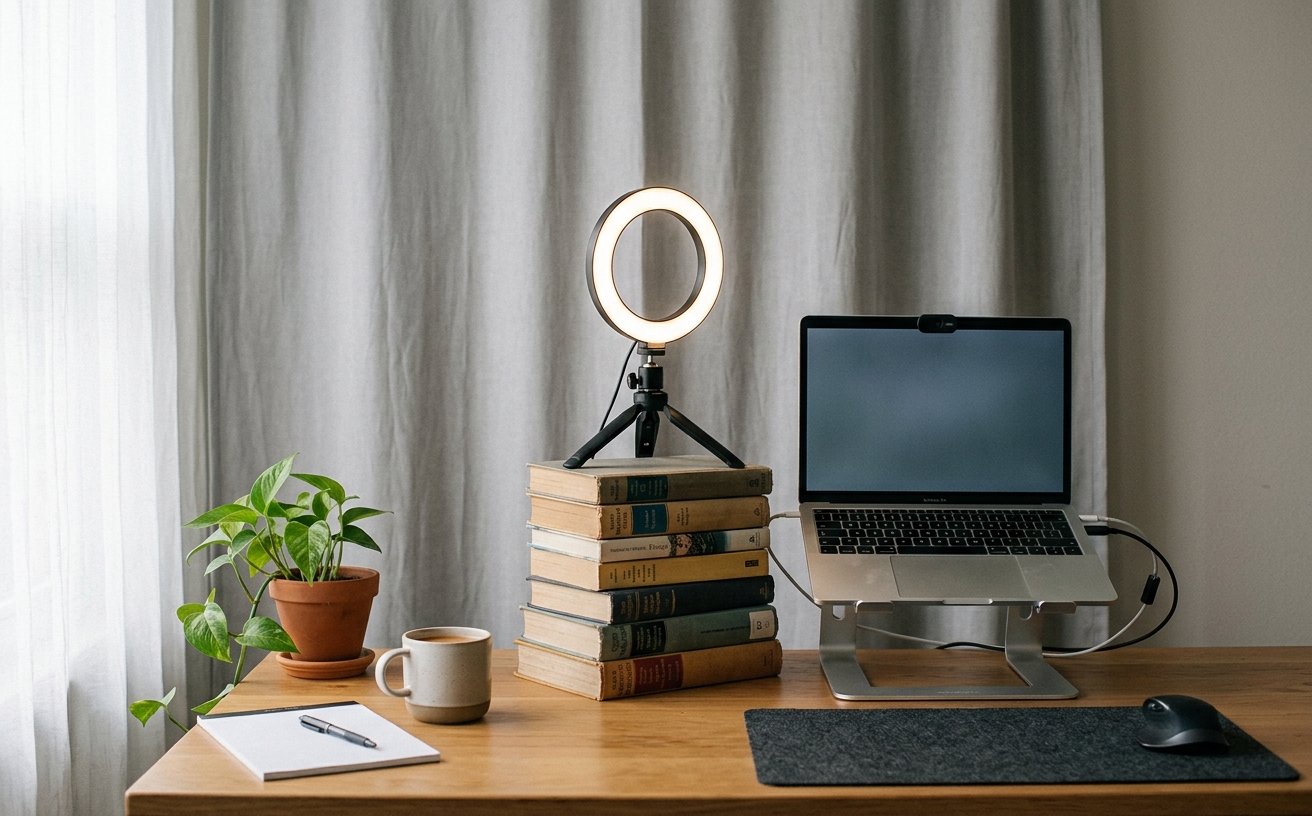
The default placement of a laptop camera forces the user into a sustained forward-head posture, placing undue mechanical stress on the cervical spine. When you spend four hours a day looking down at a screen hinge, the resulting muscle fatigue directly impacts your ability to focus on complex tasks afterward. This physical toll is entirely avoidable, yet many professionals accept it as a standard condition of remote work. Correcting this requires decoupling the camera from the screen and treating it as an independent ergonomic variable. This guide focuses on structural solutions—proper mounting heights and physical background management—that prioritize your physical comfort and cognitive bandwidth over high-resolution novelty.
The Ergonomics of Eye-Level Communication
Beyond physical strain, the angle of your camera dictates the psychological dynamic of your meetings. A low camera angle creates an unnatural, looming perspective that distorts facial features and forces your colleagues to look up your nose. Conversely, a camera placed too high mimics the perspective of a security camera, diminishing your presence in the room. The goal is to replicate the neutral, horizontal eye contact of a traditional conference table, which fosters a more relaxed and equitable communication environment.
Establishing this baseline requires precise measurement rather than guesswork. Sit in your chair with your feet flat on the floor and your lower back fully supported. Look straight ahead at your primary monitor. Your camera lens should sit exactly at this horizontal plane, typically aligning with the top third of your display. Achieving this specific height often means abandoning the built-in webcam entirely and investing in external mounting hardware that offers millimeter-level vertical adjustments.
Maintaining this posture prevents the slow degradation of your spinal alignment over the course of a heavy meeting day. When the camera sits at true eye level, you are no longer tempted to hunch forward or tilt your chin downward to engage with the lens. This neutral neck position reduces tension headaches and upper back fatigue, preserving your physical energy for the actual cognitive demands of your work rather than fighting your furniture.
Mounting Hardware That Actually Works
Relying on the standard monitor clip included with most webcams is a compromise that rarely serves a permanent workspace. These clips are prone to shifting when you adjust your screen, and they limit your camera placement to the exact center of your monitor bezel. If you use a dual-monitor setup or an ultrawide display, the center point might not align with your natural seated posture. A dedicated mounting system separates your camera position from your display hardware, granting you complete control over the framing.
Desk-mounted camera poles offer the most stable and adjustable solution for permanent home offices. These vertical masts clamp to the back edge of the desk surface and feature articulating arms or ball heads that allow for precise positioning. When evaluating these mounts, prioritize rigid metal construction over plastic friction joints. A high-quality pole will support heavier equipment without sagging over time, ensuring your carefully calibrated eye-level position remains locked in place through weeks of continuous use and desk vibrations.
For users with sit-stand desks, the mounting strategy requires additional consideration. If your monitor is mounted to an arm but your camera is on a fixed desk pole, changing your desk height or monitor position will break your alignment. In these environments, utilizing a monitor arm equipped with an integrated camera thread, or attaching a lightweight extension bracket directly to the VESA plate, ensures the camera travels in tandem with your screen. This synchronization eliminates the need to recalibrate your frame every time you change your posture.
Physical Background Control vs. Software Blur
Software-based background blur and virtual replacement tools are often deployed as quick fixes for messy rooms, but they introduce a subtle cognitive load to every conversation. The algorithms constantly struggle with edge detection, resulting in flickering artifacts around your hair, disappearing hands when you gesture, and sudden reveals of the actual room when you shift your weight. This visual instability forces both you and your audience to process unnecessary visual noise, accelerating meeting fatigue during long stretches of collaborative work.
True background control relies on physical environment design rather than software intervention. The most effective strategy is positioning your desk so that your back faces a solid wall or a shallow, deliberately curated space. If room layout prevents this, consider deploying a physical room divider or a freestanding acoustic panel behind your chair. These physical barriers completely block the view of household traffic or unstructured clutter, providing a reliable, static backdrop that requires zero processing power and never glitches during an important presentation.
When a physical barrier is impractical, strategic lighting can serve as an effective background management tool. By increasing the brightness of the key light illuminating your face and lowering the ambient light in the rest of the room, you can naturally drop the background into shadow. This technique, known as controlling the contrast ratio, draws the viewer's eye directly to you while obscuring distracting details behind you. It creates a professional, focused aesthetic without relying on artificial blurring algorithms.
Managing Glare and Window Placement
Natural light introduces significant variables into your background control strategy. Positioning your desk with a window directly behind you forces your camera to expose for the bright exterior, plunging your face into silhouette. Conversely, facing a window provides excellent illumination for your face but leaves your background entirely dependent on the room's interior lighting. The optimal arrangement places the primary light source at a forty-five-degree angle to your face, balancing natural illumination while keeping the background manageable.
Because natural light shifts constantly throughout the workday, static background control requires physical light modifiers. Installing dual-layer window treatments—combining a sheer diffusion roller with a solid blackout shade—grants you complete authority over the light entering your space. During a morning focus block, you might leave the sheer shade down to soften harsh sunlight. For a critical afternoon presentation, deploying the blackout shade allows you to rely entirely on your controlled, consistent artificial lighting setup, ensuring your background remains identical regardless of the weather outside.
The height of your camera also dictates how it interacts with overhead lighting fixtures. A camera angled slightly upward to compensate for a low mount will inevitably catch the glare from ceiling lights, creating washed-out images and distracting lens flares. By raising the camera to true eye level and keeping the lens perfectly perpendicular to the floor, you eliminate overhead glare from the frame. This precise alignment ensures the camera sensor only captures the light deliberately directed at your face and your managed background.
Portable Solutions for Travel and Hybrid Days
Maintaining this standard of comfort and control becomes distinctly challenging during travel days or when operating from temporary hybrid workspaces. Hotel rooms and shared corporate desks rarely offer optimal lighting or ergonomic monitor heights, threatening to undo the physical habits established in your primary office. However, abandoning your standards on the road leads directly to the neck strain and visual fatigue you worked to eliminate. The solution involves packing a highly curated, lightweight kit designed specifically to replicate your home setup's geometry.
Portable laptop risers are non-negotiable for travel, but they rarely elevate the built-in camera to true eye level without making the keyboard unusable. Instead, pair a moderate laptop stand with a compact, suction-cup camera mount or a specialized travel tripod. These devices add minimal weight to a backpack but allow you to mount a small external webcam at the correct height, whether you are working from a hotel desk or a dining table. The physical separation of camera and screen remains the priority, even in transit.
Background control on the road requires situational awareness rather than heavy equipment. When selecting a workspace in a temporary location, prioritize seating that places a solid wall immediately behind you. Avoid corners with complex reflective surfaces or areas with high foot traffic. If you frequently take calls from unpredictable environments, a collapsible fabric background that attaches directly to the back of your chair provides a reliable, neutral backdrop. It eliminates the anxiety of exposing a messy hotel room, allowing you to focus entirely on the work.
Decision checklist
- Measure the distance from your desk surface to your eye level while seated in your primary working posture.
- Verify your camera mount can clear the top bezel of your primary monitor by at least two inches.
- Position your desk so your back faces a solid wall or a controlled, shallow-depth area rather than an open hallway.
- Test your background at three different times of day to identify shifting sunlight patterns or glare.
- Ensure your camera cable is long enough to accommodate the full extension of a standing desk without pulling.
Who should skip this
This guide is unnecessary for professionals whose remote work consists entirely of asynchronous communication or audio-only calls. Additionally, if you operate in a highly regulated corporate environment that prohibits the installation of third-party hardware or external cameras, you will be limited to the equipment provided by your IT department and should focus on seating posture rather than mounting hardware.
Maintenance note
Regularly inspect your camera mounting hardware to ensure tension screws remain tight, particularly if you use a sit-stand desk that introduces daily vibration. Clean your camera lens weekly with a dedicated microfiber cloth to remove dust and smudges that degrade image clarity, and periodically review your physical background through your video software to ensure no new clutter has migrated into the frame.
The Connected Desk funds its editorial operations through affiliate partnerships. When you purchase workspace hardware through the links provided in our guides, we may earn a commission. We select these products based entirely on their structural integrity, ergonomic value, and suitability for sustained professional use.
FAQ
How do I determine the exact eye-level height for my camera?
Sit in your standard working posture, looking straight ahead at your primary monitor. Measure the distance from the desk surface to your pupils. Your camera lens should be mounted at this exact height, keeping the vertical angle at zero degrees.
Why should I avoid using software background blur?
Software blur relies on continuous edge-detection algorithms that frequently fail, creating flickering artifacts around your head and hands. This visual instability introduces unnecessary cognitive load for the people watching you, accelerating meeting fatigue.
Can I use a heavier mirrorless camera with standard desk mounts?
Standard webcam clips and lightweight friction arms will sag under the weight of a mirrorless camera and lens combination. You must upgrade to a heavy-duty desk pole with a locking ball head rated for at least five pounds of payload capacity.
What is the best way to handle a window directly behind my desk?
If you cannot move the desk, you must install blackout shades to eliminate the extreme backlighting. You will then need to introduce a dedicated key light in front of you to properly expose your face against the now-darkened background.