Desk Mats and Wrist Comfort
A workspace-ops note on desk mats and wrist comfort, with attention to desk depth, setup friction, team reuse, and the small adjustments that still matter after the first week.
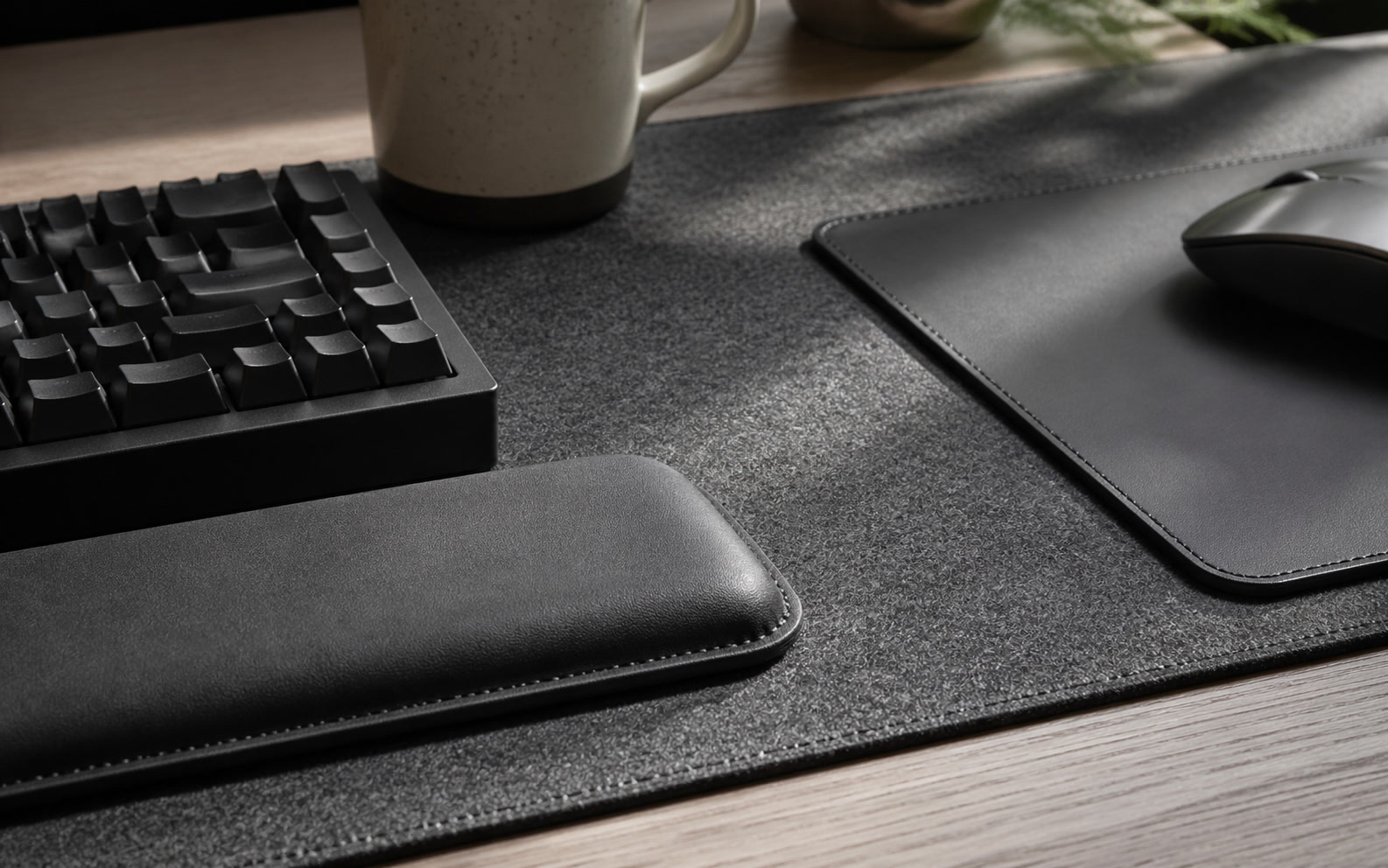
The pursuit of workspace comfort often leads to a desk mat, purchased primarily to tie a room together or protect a veneer tabletop from scratches. Yet, the moment your forearms settle onto the surface for a three-hour focus block, the physical reality of that material choice becomes impossible to ignore. Desk mats fundamentally alter the topography of your workstation. They introduce new friction coefficients under your mouse, change the acoustic profile of your mechanical keyboard, and, most critically, dictate the resting angle of your wrists. When you transition from a morning of rapid-fire emails to an afternoon of precise cursor work in dense spreadsheets, a poorly chosen mat creates micro-frictions. Edges chafe against the heel of the hand, overly plush materials cause keyboards to sink, and abrasive textures irritate the skin. Resolving the decision friction around desk mats requires looking past the aesthetic flat-lays and evaluating these surfaces as active, mechanical components of your daily operational toolkit.
Material Density and Compression Dynamics
The defining characteristic of any desk mat is its density, which directly governs how your wrists interact with your input devices. Wool felt is frequently highlighted in premium workspace photography for its visual warmth and acoustic dampening properties. However, from a strictly ergonomic standpoint, felt presents significant mechanical challenges. It is inherently abrasive, which can irritate the sensitive skin on the underside of the wrist during lateral mouse movements. More importantly, felt lacks structural memory. Over months of supporting the heavy heel of your hand or the base of an aluminum keyboard, felt develops permanent compressions, leading to an uneven typing surface.
Conversely, natural leather and furniture-grade linoleum prioritize surface stability over cushioning. These materials offer a firm, predictable plane that allows keyboards to sit perfectly level. For typists who rely on low-profile hardware, this firmness is an asset, maintaining the intended low angle of the device. The trade-off is a distinct lack of vertical yield. If you tend to plant your wrists heavily onto the desk while reading or resting between typing bursts, leather and linoleum provide almost no shock absorption, transferring the pressure directly into the carpal tunnel and the surrounding forearm tendons.
Synthetic options, specifically high-density polyurethane and vulcanized rubber bases with textile tops, attempt to bridge this gap. A quality rubber-backed mat offers a controlled amount of compression, yielding just enough to relieve pressure points on the pisiform bone at the base of the wrist, but rebounding quickly enough to prevent your keyboard from sinking. The primary friction point with synthetics is thermal regulation. Dense rubber does not breathe, meaning that during intensive afternoon focus blocks, it can trap ambient heat and perspiration against your skin, creating a sticky surface that restricts fluid arm movement.
The Edge Finishing Dilemma
Desk mat edges are a notorious source of physical irritation, often dictating whether a mat remains on a desk or is relegated to a closet. Stitched edges are structurally superior, preventing the top textile layer from delaminating from the rubber base after repeated friction. However, this stitching introduces a raised, textured perimeter. If your desk depth forces your mat to sit flush with the front edge of your desk, your forearms will constantly drag across this raised thread. Over an eight-hour workday, this repetitive friction acts like a mild abrasive, prompting you to subconsciously pull your arms back and compromise your shoulder posture.
Raw edges, commonly found on leather, linoleum, and heavy felt mats, eliminate the raised perimeter but introduce their own set of compromises. A raw cut on a thick piece of vegetable-tanned leather leaves a sharp ninety-degree angle. Unless the manufacturer has specifically burnished and beveled the edge, that sharp drop-off will press sharply into your forearms. Linoleum edges, while slightly softer, are prone to micro-chipping if they overhang the desk and are repeatedly bumped by an office chair armrest, eventually creating a jagged contact point.
The practical solution to edge friction lies in strategic sizing and placement rather than material alone. The ideal desk mat should be deep enough to accommodate your keyboard, mouse, and the entire resting length of your forearms, allowing your arms to rest entirely inside the perimeter of the mat. Alternatively, the mat should be shallow enough that it sits pushed back beneath your devices, leaving the smooth surface of your actual desk clear for your forearms. The worst-case scenario is a mat depth that places the edge directly beneath the middle of your forearm.
Keyboard Height and Wrist Extension
Introducing a desk mat alters the vertical relationship between your keyboard and your hands. While a mat may only be three to four millimeters thick, this addition is mechanically significant. If you use a standard mechanical keyboard, which already has a high front profile, adding a thick, plush mat underneath it raises the keys even further. Unless you are also using a dedicated wrist rest that matches this new elevation, your wrists will be forced into a steeper angle of extension to reach the home row. Prolonged wrist extension is a primary catalyst for repetitive strain injuries.
The illusion of plushness is a common trap in workspace setups. Mats marketed as extra thick often use low-density foam. When you place a heavy aluminum keyboard on this foam, the board sinks slightly. However, your wrists, which distribute weight differently, may not sink to the exact same depth. This creates an unpredictable typing angle that shifts depending on how heavily you rest your hands. For high-speed typing and sustained focus blocks, you need a rigid, predictable foundation, not a surface that behaves like a mattress.
To mitigate this, match the mat thickness to your peripheral ecosystem. If you use a low-profile membrane keyboard, a slightly thicker mat can provide welcome padding without elevating the keys to a dangerous angle. If you use a high-profile mechanical board, a dense, thin mat measuring two millimeters or less is preferable. A thin linoleum pad or a tightly woven synthetic provides the necessary acoustic dampening for the keyboard without altering the ergonomic geometry of your typing posture.
Surface Friction and Mouse Tracking
Wrist comfort is not solely about typing; it is equally dependent on how your mouse moves across your desk. The surface friction coefficient of your desk mat dictates the amount of muscular effort required to initiate and stop cursor movement. High-friction surfaces, like coarse wool felt or unconditioned suede, require significantly more force to move the mouse. While this might go unnoticed during casual browsing, it becomes a severe ergonomic liability during tasks requiring high precision. The wrist muscles must work harder to overcome the initial static friction, leading to rapid fatigue.
Conversely, ultra-smooth surfaces, such as hard polycarbonate or heavily coated synthetics, offer minimal resistance. While this allows for effortless gliding, it can also lead to overshooting targets on your screen. To compensate, users often subconsciously tense their wrist and forearm muscles to act as brakes, gripping the mouse tighter to maintain control. This constant, low-level muscular tension, known as static loading, restricts blood flow and accelerates the onset of aching wrists and stiff fingers by the end of the workday.
The optimal desk mat provides a balanced glide, offering enough texture to provide tactile feedback and stopping power, but smooth enough to allow the mouse to move without noticeable resistance. Tightly woven synthetic fabrics and well-conditioned, smooth-grain leathers generally offer the best middle ground. When evaluating a mat, consider the weight of your mouse. A heavy wireless mouse pairs better with a smoother mat to reduce drag, while an ultra-lightweight mouse benefits from a slightly textured surface to provide necessary control.
Maintenance, Degradation, and Posture Shifts
A desk mat is a high-contact surface, absorbing skin oils, sweat, spilled coffee, and ambient dust throughout the workweek. As the material degrades or becomes soiled, its ergonomic properties change. A synthetic cloth mat that has absorbed weeks of sweat will develop slow spots where the mouse drags heavily. When your mouse hits one of these slow spots, your wrist instinctively applies more force to push through it, disrupting your workflow and introducing sudden, jerky movements that strain the tendons.
The maintenance requirements of different materials dictate their long-term viability in a busy workspace. Felt is notoriously difficult to clean; it traps crumbs and dust deep within its fibers, requiring frequent vacuuming, and liquid spills often leave permanent textural changes. Leather requires periodic conditioning to prevent it from drying out and cracking under the heat of a laptop or the friction of a mouse. If you are unwilling to perform this maintenance, the mat will inevitably deteriorate, turning from a comfort asset into an abrasive liability.
Ultimately, a degraded desk mat leads to subconscious posture shifts. If the left side of your mat becomes frayed or sticky, you will unknowingly shift your keyboard to the right to avoid it, throwing your spine and shoulders out of alignment with your monitor. Regular maintenance is not just about preserving the aesthetic of your workspace; it is a necessary practice to ensure that the physical foundation of your desk remains consistent, predictable, and supportive of healthy wrist posture day after day.
Decision checklist
- Measure your keyboard's front edge height to determine if a thick mat will force your wrists into an uncomfortable upward extension.
- Assess your desk depth to ensure the mat's perimeter will not rest directly under the middle of your forearms during typing.
- Verify the glide resistance of your current mouse on different household surfaces to gauge whether you need a high-friction or low-friction mat.
- Inspect the edge finishing of potential mats; prioritize beveled raw edges or low-profile stitching if your arms will frequently cross the boundary.
- Evaluate your workspace temperature and ventilation, avoiding dense polyurethane or thick rubber mats if you are prone to sweating during long focus blocks.
Who should skip this
If your workstation relies on a highly specialized ergonomic setup, such as a heavily tented split keyboard, a dedicated articulating keyboard tray, or a stationary trackball mouse, a large desk mat will likely introduce unnecessary interference. Articulating trays rarely have the depth to accommodate standard mats without overhanging, and split keyboards with integrated, elevated wrist rests already manage your typing geometry. In these scenarios, the mat simply becomes a decorative layer that risks sliding around or disrupting the stable footing of your precision peripherals.
Maintenance note
To maintain consistent surface friction and prevent the buildup of abrasive particulate matter, synthetic and cloth mats should be wiped down weekly with a slightly damp microfiber cloth and left to air dry completely overnight. Avoid harsh chemical solvents or alcohol-based cleaners, as these will break down the rubber backing and dissolve the surface laminations. For leather and linoleum, use a dedicated, pH-neutral cleaner once a month, followed by a light conditioning treatment for leather to prevent the surface from drying, cracking, and creating micro-abrasions that catch on your mouse skates.
The Connected Desk funds its editorial operations through affiliate partnerships. When you purchase workspace components through our links, we may earn a commission. We do not accept payment for favorable coverage, and our material evaluations remain strictly independent, focusing solely on long-term utility, mechanical reliability, and ergonomic performance.
FAQ
Does a desk mat replace the need for a dedicated wrist rest?
No. A desk mat provides a few millimeters of surface cushioning, which reduces pressure on the heel of the hand, but it does not elevate your wrists to align with a high-profile mechanical keyboard. If your keyboard requires a wrist rest to maintain a neutral typing angle, you will still need one on top of the mat.
How thick should a desk mat be for optimal typing comfort?
For most users, a thickness of two to three millimeters is ideal. This provides enough density to dampen keyboard acoustics and slightly cushion the desk surface without causing the keyboard to sink or significantly altering your typing geometry.
Can I place a warm laptop directly on a leather or synthetic desk mat?
It is generally not recommended for prolonged periods. The heat exhaust from a high-performance laptop can cause synthetic rubber bases to warp or adhere to the desk veneer, and it can prematurely dry out and discolor natural leather. Always use a laptop stand to ensure proper ventilation.
Why does my mouse feel sluggish on my new felt desk mat?
Felt has a naturally high coefficient of friction due to its coarse, interlocking fibers. This creates significant drag against the plastic skates of your mouse. If you require fast, precise cursor movements, felt is mechanically the wrong material choice; you should transition to a smooth synthetic or linoleum surface.