Desk Setup Audit Checklist
An operations-minded guide to desk setup audit checklist, separating useful workflow support from gear that only looks tidy in a photo.
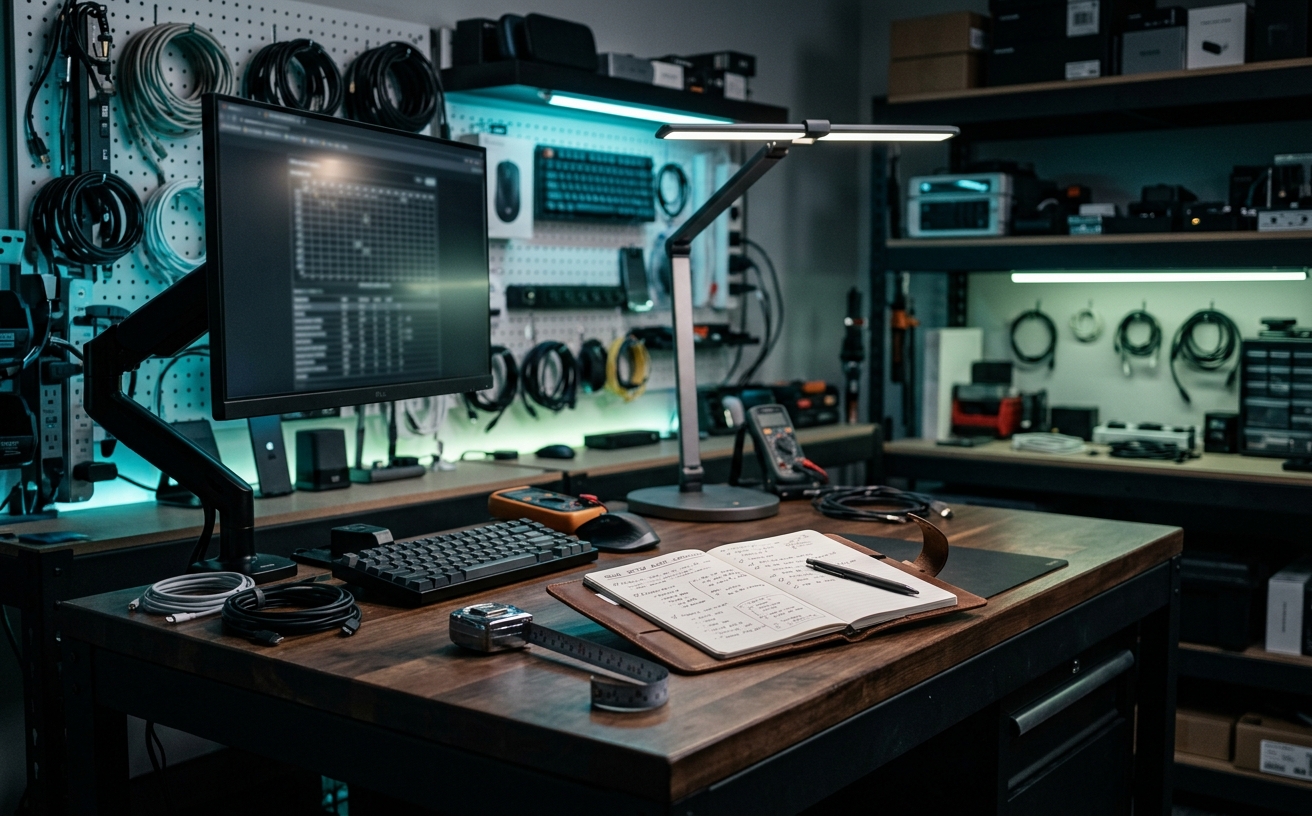
A functional workspace is not defined by how it looks in a static photograph, but by how it behaves during the transition between a three-hour deep work block and a sudden sequence of video calls. The physical environment degrades through use: monitor arms sag under heavy displays, cable slack disappears behind desk legs, and task lighting shifts out of optimal alignment. This audit checklist establishes a systematic approach to resetting your environment. It targets the friction points that accumulate when you repeatedly dock and undock travel laptops, adjust sit-stand mechanisms, and shift between analog and digital workflows. By evaluating ergonomic endurance, hardware modularity, and environmental controls, this guide provides a framework to ensure your desk setup remains a reliable system rather than a constant source of micro-distractions.
Ergonomic Endurance and Postural Shifts
Monitor positioning is highly susceptible to incremental drift, particularly when utilizing articulating gas-spring arms supporting ultrawide or dual-display configurations. Over weeks of minor adjustments to accommodate shifting seating postures or standing desk heights, screens often settle lower and closer than their optimal ergonomic placement. This audit requires measuring the distance from your primary viewing position to the center of the display, ensuring it remains at roughly arm's length. Furthermore, verify the tilt angle; the top bezel should align horizontally with your resting eye line to prevent cervical spine flexion during extended reading sessions. Tighten any VESA plate joints that exhibit lateral play when you type heavily.
Seating mechanics require regular calibration, as the tension in synchronous tilt mechanisms and lumbar supports gradually loosens under daily load. Begin by resetting your chair's tilt tension to match your current body weight, ensuring the backrest provides active resistance rather than collapsing backward when you lean away from the keyboard. Check the pneumatic cylinder for vertical sink—a common issue where the chair loses a half-inch of height over a week, subtly altering your arm angle relative to the desk surface. Realign the armrests so they support your elbows without forcing your shoulders upward, maintaining a neutral posture during prolonged typing blocks.
The interaction zone between your input devices and the desk surface dictates the physical strain on your wrists and forearms. Evaluate the placement of your keyboard and mouse, confirming they sit within your primary reach zone without requiring you to extend your arms away from your torso. Inspect the desk mat or tracking surface for localized wear, which alters mouse sensor tracking and increases the physical effort required for cursor movement. If you utilize a split ergonomic keyboard, verify that the tenting angles remain symmetrical and that the connecting cable has not become tensioned or trapped beneath other peripherals.
Lighting Adaptation for Video and Focus
Ambient light transitions dictate how your workspace functions from early morning into the evening. Begin the lighting audit by evaluating your primary light source, whether it is natural window light or overhead room fixtures. Check for glare on your primary displays by sitting in your standard position and turning the monitors off; any reflections visible on the black screen indicate a need to reposition the display or adjust window blinds. Ensure that your bias lighting—the illumination placed behind the monitors—is set to a neutral 6500K color temperature to reduce eye strain without distorting the color accuracy of your screens.
Key lighting for video calls requires specific attention, as repeated adjustments often leave panels aimed incorrectly. Turn on your webcam preview and activate your key lights to check for harsh shadows under your eyes or blown-out highlights on your forehead. The lights should be positioned at roughly a 45-degree angle from your face and diffused adequately. If you use desktop light panels mounted on telescopic poles, verify that the locking collars are tight; these poles frequently slip downward over time, altering the angle of illumination and casting unflattering shadows during your afternoon meetings.
Task lighting serves a distinct purpose from video illumination, focusing strictly on analog workflows like reviewing printed documents or writing in notebooks. Audit your desk lamp or monitor light bar to ensure the beam is directed precisely at your physical work zone without spilling onto the monitor screen, which washes out contrast. Check the articulation joints of architect-style lamps for tension, ensuring they hold their position when pulled forward. If your task light features variable color temperatures, confirm the controls are functioning and easily accessible, allowing you to switch to warmer tones during late-night reading sessions.
Cable Management and Hardware Modularity
The docking station is the central nervous system of a modular workspace, and its primary connection point bears the brunt of daily wear. Inspect the Thunderbolt or USB-C cable used to connect your laptop for physical damage, particularly at the connector neck where bending stresses are highest. Ensure the port on the dock itself is free of dust and that the connection seats firmly without lateral wobble. If you frequently travel, verify that your docking procedure takes fewer than ten seconds and requires connecting only a single cable to activate displays, power, and peripherals.
Cable slack management is a persistent challenge for sit-stand desks, as the transition between heights constantly alters tension. Raise your desk to its maximum standing height and trace the path of every cable running from the desk surface to the floor or wall outlet. Look for cables pulling taut against their routing clips or stretching tightly across the back edge of the desk. Adjust your under-desk raceways or cable spines to provide an additional three inches of slack at the highest position, preventing accidental disconnections or strain on peripheral ports during motorized adjustments.
Peripheral charging cycles often introduce desk clutter if not systematically managed. Audit the battery status of your wireless mouse, keyboard, and headset, and evaluate the physical routing of their charging cables. Ideally, charging cables should be routed through discrete channels or magnetic clips at the edge of your desk mat, remaining invisible until needed. Test the connectors to ensure they have not been crushed or bent by heavy desk accessories. If you rely on Qi wireless charging pads, verify their placement does not interfere with your mouse movements or the deployment of analog reference materials.
Acoustic Control and Audio Routing
Audio input reliability is critical for professionals managing back-to-back remote meetings. Audit your microphone placement by ensuring the capsule sits within six to eight inches of your mouth when in your standard seated posture. If you use a boom arm, check the tension springs and friction knobs; the arm should move silently and stay exactly where positioned without sagging into your keyboard space. Perform a quick local recording to test for mechanical noise transmission from the desk, such as keyboard bottoming-out sounds or the hum of external hard drives, adjusting the shock mount or noise gate settings accordingly.
Speaker and headphone switching friction is a common workflow bottleneck that requires auditing. Verify that your operating system or physical audio interface allows you to switch between desktop monitors and your headset with a single click or button press. Inspect the headphone cable routing if you use wired studio monitors, ensuring the cable does not drag across your keyboard or get caught in your chair's armrests. For wireless headsets, check the USB dongle placement; it should be connected to a front-facing hub or extension cable to maintain a clear line of sight, preventing audio dropouts during calls.
Room acoustics degrade the quality of your communication if hard surfaces are left unmanaged. Evaluate the immediate area surrounding your desk for acoustic reflections, particularly bare walls directly behind your monitors or uncarpeted floors beneath your chair. While you do not need a professional soundstage, adding a dense rug under the desk or positioning acoustic panels at the primary reflection points can significantly reduce flutter echo. Clap your hands sharply while sitting at your desk; if you hear a distinct metallic ringing, your workspace requires additional soft materials to absorb the high-frequency reflections.
Surface Organization and Analog Workflows
The physical landing zone is the designated area on your desk for items in transit, such as travel laptops, daily carry bags, or mail. Over time, this zone tends to expand, encroaching on the primary workspace. Audit this area by clearing it completely, establishing strict physical boundaries using a desk tray or a specific corner of the surface. Ensure that deploying your travel gear upon returning from a trip does not require moving your primary keyboard or shifting your monitors. A disciplined landing zone prevents temporary clutter from becoming permanent desk fixtures.
Managing paper, notebooks, and reference materials requires a system that does not compete with your digital footprint. Evaluate how you handle physical documents during a focus block. You should have a clear, flat space measuring at least the size of an open notebook situated between your keyboard and the edge of the desk, or immediately to your dominant side. If you use a document camera or a copy stand, verify its alignment and lighting. Remove any completed notebooks or archived paperwork from the immediate desk surface, transferring them to secondary storage to maintain a low-distraction visual field.
Surface cleaning friction dictates how well your equipment is maintained over the long term. Inspect the desk surface for dust accumulation, particularly in the dead zones beneath monitors and behind docking stations. Check for coaster rings, ink smudges, or material degradation on your desk mat. This audit step involves physically wiping down the surface with appropriate cleaners—avoiding harsh chemicals on solid wood or polyurethane finishes—and using compressed air to clear debris from keyboard switches and ventilation grilles on your laptop and dock. A clean surface directly impacts the thermal performance of your hardware and the precision of your optical sensors.
Decision checklist
- Measure the distance and tilt of your primary monitors to confirm they have not sagged from their optimal ergonomic alignment.
- Raise your sit-stand desk to its maximum height and verify that all routed cables maintain at least three inches of slack.
- Test the primary docking cable connection for physical wear and ensure the port seats firmly without lateral wobble.
- Activate your webcam and key lighting to check for harsh shadows or shifted light panels that degrade video quality.
- Clear the physical landing zone of all non-essential items accumulated from previous travel or analog workflows.
Who should skip this
Professionals who operate exclusively in hot-desking environments, rely solely on a single laptop without external peripherals, or change their primary work location daily will find this audit unnecessary. This guide is built for static, multi-peripheral environments where equipment remains in place and is subject to the gradual drift and wear of repeated, heavy use.
Maintenance note
Execute this audit on a monthly basis or immediately following a multi-day business trip. Keep a dedicated maintenance kit in your desk drawer containing microfiber cloths, compressed air, a precision screwdriver set for tightening VESA mounts, and spare hook-and-loop cable ties to address minor adjustments without breaking your workflow.
The Connected Desk is reader-supported. We may earn a commission through links on our site. Our editorial process remains independent and our recommendations are based on systematic evaluation of workspace hardware.
FAQ
How often should I perform a full desk setup audit?
A full audit should be conducted monthly, or immediately after returning from a business trip where you have removed and replaced your primary travel hardware. This frequency prevents minor ergonomic drift from causing physical strain.
What is the most common failure point in a sit-stand setup?
Cable tension is the primary failure point. As the desk moves between sitting and standing heights, cables routed too tightly will strain peripheral ports, pull monitors out of alignment, or cause sudden hardware disconnections.
How do I manage audio routing issues between meetings?
Implement a physical audio interface or map dedicated macro keys on your keyboard to switch audio outputs at the operating system level. This removes the friction of navigating software menus when transitioning from speakers to a headset.
Should I audit my chair during this desk process?
Yes. Seating mechanics are integral to your desk setup. You must check the pneumatic cylinder for vertical sink and reset the tilt tension to ensure your posture relative to the desk surface remains consistent.