Dual Monitor Arms for Rented Apartments
Field notes for dual monitor arms for rented apartments: what changes during calls, handoffs, travel days, and long focus blocks, without turning the desk into a showroom.
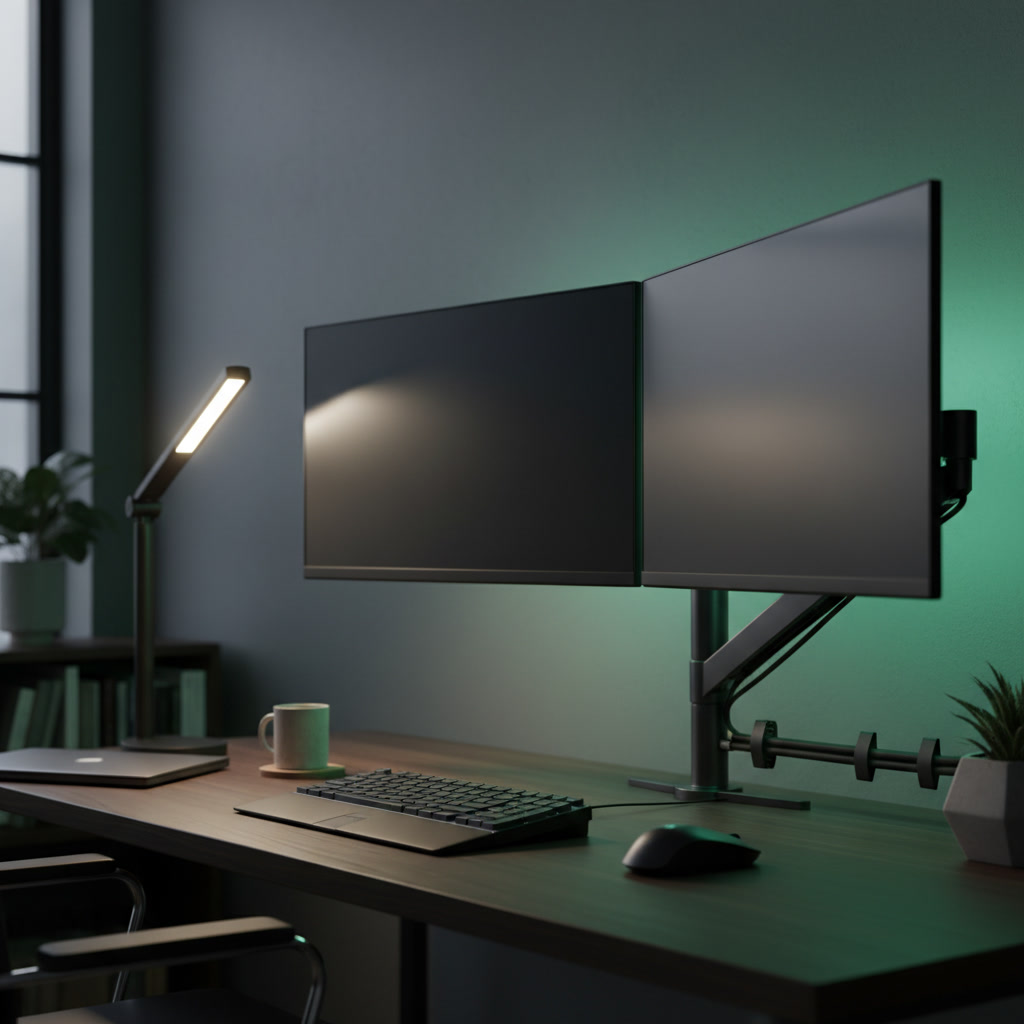
Renting an apartment inherently limits how permanent your workspace infrastructure can be, specifically ruling out wall-mounted hardware that requires drilling into drywall, locating studs, and patching holes upon move-out. When you rely on a dual-monitor setup for daily deep work, video conferences, and multitasking, the structural burden of supporting those displays falls entirely on your desk and the monitor arm you choose to clamp to it. A high-quality dual monitor arm must do more than simply hold screens off the surface; it has to maintain precise tension across thousands of micro-adjustments, survive the inevitable transitions between sitting and standing, and protect the desk material from clamp damage. This guide examines the mechanical requirements, mounting constraints, and structural considerations for selecting a dual monitor arm that will endure heavy, repeated daily use without jeopardizing your security deposit, damaging your furniture, or requiring constant retightening after every focus block.
Clamp Mechanics and Surface Protection
Because renters generally cannot drill grommet holes into their desks—especially if the desk is provided by the landlord or serves as a temporary piece—the C-clamp becomes the primary interface between your heavy monitors and the workstation. The physics of mounting two displays on a single central pole creates immense localized pressure at the edge of the desk. Every time you pull a monitor forward or push it back, you create a lever effect that multiplies the force exerted on the clamp. If the clamping mechanism lacks sufficient surface area, this concentrated point load can permanently indent, scratch, or even crack the desk material over time.
The composition of your desk surface dictates how safely you can deploy a dual monitor arm. Solid hardwoods, high-density bamboo, and thick, commercial-grade particleboard can generally withstand the compressive force of a heavy-duty C-clamp. However, popular hollow-core desks, which consist of a thin veneer over a cardboard honeycomb interior, will eventually crush under the sustained pressure of a dual-arm setup. When the internal structure of the desk collapses, the clamp loosens, causing the entire monitor assembly to lean forward dangerously, threatening both the hardware and the user.
To mitigate this risk and protect the desk surface, deploying a steel reinforcement plate is highly recommended for any clamped dual-monitor setup. These plates sit between the C-clamp and the desk surface, effectively distributing the weight and clamping force over a significantly larger area. A quality reinforcement bracket includes dense rubber or neoprene padding that prevents the steel from scratching the desk finish. This simple addition ensures the setup remains rigidly stable during daily adjustments while leaving the desk completely unblemished when your lease ends and it is time to pack up.
Articulation Mechanisms: Gas Cylinders vs. Mechanical Springs
The internal mechanism that allows a monitor arm to lift and hold the weight of your screens dictates how the system will perform over years of repeated use. Premium monitor arms typically utilize either gas cylinders or mechanical coil springs to provide counterbalance. Gas spring arms rely on compressed nitrogen within a sealed cylinder. They offer exceptionally smooth, floating articulation, allowing you to reposition a monitor with a single finger. This fluid movement is ideal for users who constantly shift their screens throughout the day—pulling a monitor close for detailed spreadsheet work, then pushing it back and raising it for a standing video call.
Mechanical spring arms, conversely, use heavy-duty steel coils to counterbalance the display weight. While they may require slightly more physical effort to adjust than their gas-powered counterparts, mechanical springs offer superior long-term durability. Gas cylinders can slowly lose pressure over several years, eventually failing to hold the monitor at the desired height. Steel springs do not suffer from gas depletion, making them highly reliable for heavy displays and long-term deployment across multiple apartments. The choice between the two depends on whether you prioritize effortless daily movement or decades of maintenance-free tension.
Regardless of the spring type, the ability to fine-tune the tension is a non-negotiable feature for repeat use. As you swap monitors or change your desk configuration, you must be able to adjust the lifting force to perfectly match the weight of the new displays. A high-quality arm will feature accessible tension screws at the primary joints. If you frequently adjust your screens, avoid friction-based pole mounts that lack internal springs entirely; these require you to manually loosen a collar, slide the monitor up or down the pole, and retighten it—a tedious process that discourages ergonomic adjustments and inevitably leads to stripped bolts.
Weight Capacity, Center of Gravity, and Tilt Joints
Evaluating a dual monitor arm requires looking past the total weight capacity and focusing on the per-arm limits and the specific dimensions of your displays. A dual arm rated for forty pounds total may technically support two twenty-pound monitors, but the structural integrity depends heavily on how that weight is distributed. Furthermore, the size of the monitor impacts the leverage exerted on the arm. A 27-inch standard display and a 34-inch ultrawide display might weigh the same, but the wider monitor places different torsional stress on the VESA mounting joint when you attempt to rotate or tilt the screen.
The tilt mechanism—the joint directly behind the monitor that controls the upward and downward angle—is the most common point of failure in dual monitor setups. This joint must resist the natural tendency of the monitor to droop forward. Curved monitors complicate this significantly. The curvature pushes the screen's center of gravity further away from the VESA pivot point, increasing the moment arm and the resulting torque. A standard monitor arm that easily holds a flat twenty-pound screen may fail completely when tasked with holding a curved twenty-pound screen, resulting in a display that constantly sags toward the desk.
To ensure the arm survives daily adjustments and future hardware upgrades, it is prudent to purchase an arm with a weight capacity that exceeds your current monitors by at least twenty percent. Operating a gas or mechanical spring at its absolute maximum tension accelerates wear on the internal components. By leaving a buffer in the weight capacity, you ensure the tilt joints and lift cylinders retain their holding power through years of daily repositioning, keeping your workspace functional and stable regardless of how many times you move or upgrade your primary displays.
Dynamic Cable Management
A dual monitor setup inherently involves a complex web of power cables, display connections, and USB upstream cords. When the monitors are mounted on articulating arms, these cables must be managed in a way that accommodates constant movement. Integrated cable channels built into the upper and lower segments of the monitor arms are standard on premium models, allowing you to route the wires cleanly out of sight. However, routing cables through moving joints requires careful planning to ensure the cords are not pinched, stretched, or severed when the arm is pushed to its maximum extension.
The most critical aspect of dynamic cable management is leaving adequate slack at every articulation point. A common error is pulling the cables tight against the arm to achieve a visually clean look. When the user subsequently raises the desk to a standing position or pulls the monitor forward, the tension instantly yanks the cables out of the monitor ports, potentially damaging the delicate internal pins of a DisplayPort or HDMI connection. You must physically move the arm through its entire range of motion—up, down, left, right, and forward—while routing the cables to ensure sufficient slack exists at the VESA joint and the central elbow.
For renters, the cable routing path from the base of the monitor arm down to the computer or docking station should remain modular. Because permanently screwing wire-management baskets into the underside of a rental desk is rarely an option, utilizing the monitor arm's central pole as the primary vertical routing path keeps the setup clean. Securing the cables to the pole with reusable hook-and-loop fasteners allows you to easily swap out a failing display cable or pack up the entire system for a move without having to unthread a complex, rigid cable management spine.
Disassembly and Portability for Relocation
The reality of renting is that you will eventually have to pack up your workspace and move. A dual monitor arm is a heavy, awkward piece of hardware that requires specific handling during disassembly to prevent injury and hardware damage. High-quality arms are designed with modularity in mind, allowing the user to break the system down into manageable components rather than attempting to transport a massive, fully assembled steel spider. Understanding how the arm comes apart is just as important as knowing how to install it.
Quick-release VESA plates are a vital feature for anyone who anticipates moving. Instead of awkwardly holding a heavy monitor in the air while trying to unscrew four tiny bolts from the back of the arm, a quick-release system allows you to simply pull a latch and lift the monitor off the mount. This separates the fragile displays from the heavy steel arms in seconds, allowing you to pack the monitors safely in their original boxes before dealing with the dismantling of the heavy C-clamp and tension arms.
When packing the arms themselves, extreme caution must be taken with the tension mechanisms. Gas cylinders and mechanical springs are calibrated to push upward against the weight of a heavy monitor. Once the monitor is removed, that upward force is unopposed. If a tension arm is not secured, it can violently snap open during transit, potentially causing injury or punching through a moving box. Premium arms often include a locking mechanism or a specific method for depressurizing the tension screw before disassembly, ensuring the hardware remains safe and inert during the move to your next apartment.
Decision checklist
- Measure your desk's edge overhang; the C-clamp requires a minimum of 2.5 inches of flat, unobstructed clearance from the edge to the metal frame.
- Verify your desk material is solid wood, high-density fiberboard, or metal, avoiding hollow-core paper desks that will crush under the clamp's point load.
- Confirm the VESA mount compatibility (75x75mm or 100x100mm) and check the exact weight of your monitors without their factory stands attached.
- Procure a steel reinforcement bracket plate if your desk is less than one inch thick or constructed from softer materials like pine or standard MDF.
- Ensure your display cables and power cords are at least six to eight feet long to accommodate the extended routing path through the arm channels.
Who should skip this
Individuals utilizing dual 49-inch super-ultrawide monitors or those working on glass-top desks should avoid standard dual-arm C-clamp mounts. The concentrated pressure from a heavy-duty clamp supporting two massive displays will shatter tempered glass, and dual super-ultrawides require specialized heavy-duty single poles or direct wall mounts that contradict the renter-friendly, non-drilling constraints of this setup.
Maintenance note
To maintain smooth articulation, wipe down the gas spring cylinders with a microfiber cloth to remove dust, and apply a small amount of dry PTFE lubricant to the primary pivot joints annually to prevent binding. Because seasonal humidity changes and daily desk vibrations can cause materials to expand and contract, manually check and retighten the main C-clamp underneath the desk every six months to ensure the base remains rigidly secured to the surface.
The Connected Desk operates as an independent editorial publication. We may earn a commission on purchases made through our external links, which directly funds our editorial operations, hardware procurement, and independent research. We do not accept paid placements, and manufacturers have no input on our editorial decisions or hardware evaluations.
FAQ
Can I safely use a dual monitor arm on a glass desk?
No. The concentrated downward and torsional pressure from a C-clamp supporting the weight of two monitors and the heavy steel arms will shatter tempered glass. Glass desks require freestanding monitor mounts with wide, flat bases that distribute the weight evenly without clamping.
Why do my monitors slowly tilt forward over time, even after tightening?
The tension bolt at the VESA tilt joint is either insufficiently tightened, or the monitor's center of gravity exceeds the arm's mechanical capacity. Curved monitors push the center of gravity forward, increasing torque on the joint and requiring an arm specifically rated for heavy-duty tilt resistance.
Is it better to use two single monitor arms or one dual monitor arm?
Two single arms offer greater placement flexibility and distribute the structural load across two separate points on the desk, which is safer for thinner surfaces. However, a single dual arm provides a cleaner aesthetic, requires less desk edge space, and is generally easier to align, provided your desk is sturdy enough to handle the combined load at a single point.
How do I stop the heavy C-clamp from scratching or denting my rental desk?
Install a steel reinforcement plate equipped with a neoprene or dense rubber pad. This plate sits between the clamp and the top of the desk surface, preventing direct metal-on-wood contact, eliminating scratches, and spreading the clamping force over a wider area to prevent permanent indentations.