Monitor Decision Matrix
A remote-work review of monitor decision matrix, looking at setup time, reliability, portability, and what breaks when the calendar gets crowded.
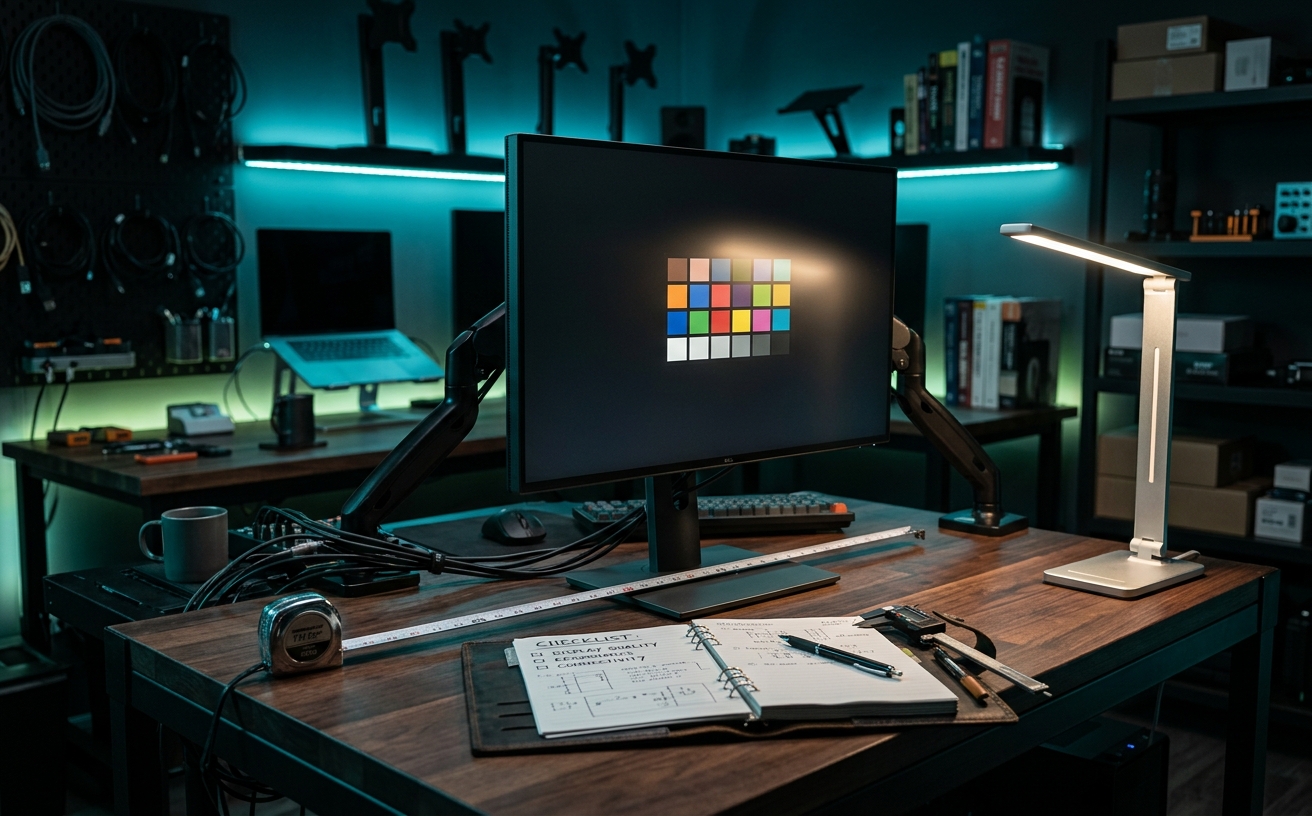
When evaluating external displays for a primary workspace, the specifications that dominate retail packaging—peak brightness, ultra-high refresh rates, and extreme curvature—rarely correlate with long-term physical comfort. The true measure of a monitor's value emerges during the seventh consecutive hour of spreadsheet review or the fourth video conference of the afternoon. A reliable display setup functions as a passive ergonomic tool, reducing the subtle physical compensations, like squinting, leaning forward, or adjusting neck angles, that accumulate into significant fatigue by Friday. This decision matrix prioritizes sustained visual comfort, text rendering clarity, and seamless connectivity over novelty features, providing a framework for selecting a monitor that supports deep, focused work rather than distracting from it.
Resolution and Text Scaling Fundamentals
The relationship between screen size, resolution, and operating system scaling dictates how hard your eyes work to parse text. For macOS users, pixel density is a primary constraint; the operating system is optimized for displays hovering around 110 or 220 pixels per inch. Plugging a Mac into a standard 27-inch 1440p monitor often results in blurry text, forcing the eyes to constantly attempt to focus on soft edges. Windows handles fractional scaling with more grace, but the baseline requirement for crisp typography remains a high physical pixel density.
A 27-inch 4K monitor represents the current baseline for most professional desks, offering roughly 163 pixels per inch. This density allows for sharp text rendering without requiring an excessive physical footprint on the work surface. When evaluating 4K options, the focus should shift from raw pixel count to the panel's anti-glare treatment. Heavy matte coatings can introduce a grainy texture, often referred to as sparkle, which negates the benefits of high resolution by making solid white backgrounds look slightly dirty or textured.
Ultrawide monitors present a different scaling challenge entirely. A 34-inch ultrawide typically relies on a 1440p vertical resolution, which sacrifices text sharpness for horizontal real estate. While the uninterrupted timeline is beneficial for video editing or audio mixing, professionals working primarily in text-heavy applications often find the lower pixel density taxing over a full workday. The decision here hinges on whether your specific workflow prioritizes horizontal continuity over typographic clarity.
Panel Technology and Visual Fatigue
In-Plane Switching panels remain the standard recommendation for productivity setups, primarily due to their consistent color reproduction and wide viewing angles. When you shift in your chair during a long focus block, an IPS panel ensures the contrast and colors do not invert or wash out, which prevents the subconscious need to perfectly align your posture with the dead center of the screen. While OLED panels offer superior contrast ratios, their subpixel layouts can sometimes cause text fringing, making them less ideal for reading dense documentation.
Flicker-free backlighting and hardware-level low blue light filters are non-negotiable for sustained comfort. Older or lower-tier monitors use Pulse-Width Modulation to control brightness, rapidly turning the backlight on and off. Even if this flicker is imperceptible to the naked eye, it forces the ciliary muscles to constantly adjust, leading to tension headaches. Modern productivity displays should explicitly state they use Direct Current dimming to regulate brightness across all levels.
Brightness requirements for office work are generally overstated in marketing materials. While 400 to 600 nits is necessary to overcome direct sunlight in a brightly lit room, most professionals work comfortably with their monitors calibrated between 120 and 150 nits. Instead of peak brightness, evaluate the monitor's minimum brightness threshold. A display that cannot dim sufficiently becomes a harsh spotlight during early morning or late evening work sessions, disrupting circadian rhythms and causing immediate visual strain.
Ergonomics and Physical Adjustability
The stand included in the box is often the weakest component of a commercial monitor, yet it dictates your cervical spine alignment. A display must offer generous height adjustment, tilt, and swivel capabilities. The top bezel of the monitor should sit at or slightly below eye level; anything lower forces a forward head posture, adding pounds of effective weight to the neck muscles. If a monitor lacks sufficient vertical travel, it requires immediate pairing with a third-party monitor arm.
VESA mount compatibility, typically 100x100mm, is a mandatory specification for any premium workspace. Transitioning from a fixed stand to a mechanical or gas-spring monitor arm reclaims valuable desk depth and allows for micro-adjustments throughout the day. As your posture naturally shifts from a rigid upright position in the morning to a slightly reclined posture in the afternoon, the monitor should easily pull forward and tilt downward to meet your gaze, rather than forcing you to lean into the desk.
Cable routing and port placement significantly impact the physical setup process and ongoing maintenance. Downward-facing ports tucked behind a thick plastic lip require blind fumbling or physically rotating the entire display to connect a peripheral. Monitors designed with productivity in mind often feature a secondary USB hub on the bottom edge or side bezel, allowing for quick connection of temporary devices like external drives or authentication keys without disrupting the primary cable management spine.
Connectivity and The Single-Cable Workspace
USB-C connectivity with Power Delivery has fundamentally changed desk architecture, reducing the cable clutter that previously defined docking stations. A monitor supplying 90W or more of power can charge a premium laptop, transmit 4K video, and route data to connected peripherals through a single cable. This specific feature eliminates the need to unpack a laptop charger after a travel day, streamlining the transition between mobile and stationary work environments.
However, not all USB-C implementations are engineered to the same standard. It is critical to verify the upstream data bandwidth alongside the video output. Some monitors limit USB-C data speeds to USB 2.0 when driving a 4K display at 60Hz, which severely bottlenecks external hard drives or high-resolution webcams plugged directly into the monitor. Professionals relying on the monitor as their primary hub must ensure it supports high-speed data transfer simultaneously with full-resolution video.
Daisy-chaining capability via DisplayPort out is a vital consideration for multi-monitor configurations. This allows a second monitor to connect directly to the first, rather than running a second cable all the way back to the host computer. For laptops with limited port selection, this is often the most reliable method to drive dual external displays without introducing a bulky, expensive Thunderbolt dock into the hardware chain.
Environmental Adaptation and Ambient Integration
A monitor does not exist in a vacuum; it interacts constantly with the ambient light in your workspace. Displays equipped with integrated ambient light sensors can automatically adjust their brightness and color temperature to match the room. This mimics the behavior of modern smartphones and laptops, ensuring the screen never feels blindingly bright when the sun goes down or too dim during peak afternoon daylight, maintaining a consistent relative contrast.
The physical bezel design also plays a role in visual comfort. While ultra-thin bezels look sleek in promotional photography, a slightly thicker, matte-black bezel can actually improve perceived contrast and provide a resting boundary for the eyes. Glossy bezels, silver trims, or prominent glowing logos directly below the screen create micro-distractions and catch reflections from overhead lighting, subtly pulling focus away from the active application window.
Finally, consider the acoustic environment of the hardware itself. Monitors with built-in power supplies keep the floor clear but can sometimes emit a faint, high-pitched coil whine under specific brightness loads. For professionals working in silent, acoustically treated home offices, this electrical noise can be highly disruptive. Reading technical documentation regarding the power supply design and checking professional teardowns for mentions of operating noise is a necessary final step in the selection matrix.
Decision checklist
- Verify the monitor supports Direct Current dimming rather than Pulse-Width Modulation to ensure flicker-free operation at all brightness levels.
- Confirm the USB-C Power Delivery output is at least 90W to keep high-performance laptops charged during heavy processing workloads.
- Check for standard 100x100mm VESA mounting holes to guarantee compatibility with aftermarket ergonomic arms.
- Match the panel's pixel density to your operating system's optimal scaling range to avoid blurry text rendering.
- Ensure the minimum brightness level drops below 50 nits for comfortable viewing during early morning or late evening sessions.
Who should skip this
Professionals whose primary income relies on highly accurate, wide-gamut color grading for print or cinema should bypass standard productivity displays entirely, as they require specialized reference monitors with hardware calibration capabilities. Similarly, competitive esports players or game developers needing ultra-low latency and refresh rates exceeding 144Hz will find the panels recommended in this matrix too sluggish for their specific technical requirements.
Maintenance note
Maintaining visual clarity requires a disciplined cleaning routine that avoids damaging the delicate anti-glare coating. Never spray liquid directly onto the panel; instead, lightly dampen a clean, high-quality microfiber cloth with distilled water and wipe the screen using gentle, sweeping horizontal motions. Avoid paper towels, chemical glass cleaners, or excessive pressure, as these will permanently scratch the polarizing layer and create distracting optical anomalies over time.
The Connected Desk funds its independent editorial operations through affiliate partnerships. If you purchase a monitor or mounting hardware through the links in this guide, we may earn a commission. This process never dictates our coverage, and we only recommend hardware that meets our strict criteria for long-term ergonomic and technical reliability.
FAQ
Why does text look blurry on my 27-inch 1440p monitor when connected to a Mac?
macOS is optimized for specific pixel densities, generally around 110 or 220 pixels per inch. A 27-inch 1440p monitor sits at roughly 109 PPI, which should theoretically work, but modern macOS versions have removed subpixel antialiasing. This architectural change makes text appear jagged or soft on lower-resolution displays compared to the native Retina screen on the laptop.
Is an ultrawide monitor better for productivity than dual standard monitors?
It depends entirely on your window management habits. Ultrawides eliminate the physical bezel gap in the center of your vision, which is excellent for timeline-based software like video editors. However, dual monitors offer better physical segmentation for distinct tasks and generally provide higher pixel density for text clarity at the exact same price point.
Do I need a monitor with a high refresh rate for office work?
While 60Hz is the functional baseline for static work, a 90Hz or 120Hz display provides noticeably smoother cursor tracking and document scrolling. This reduces micro-stuttering, which can subtly decrease eye fatigue during long sessions of reading through dense code or lengthy PDFs, though it is a luxury rather than a strict ergonomic requirement.
Can a USB-C monitor entirely replace my dedicated docking station?
Yes, provided the monitor has a built-in USB hub and sufficient Power Delivery. If you only need to connect a keyboard, mouse, webcam, and power your laptop, a robust USB-C monitor handles this perfectly. You only need a dedicated dock if you require specialized ports like SD card readers, hardwired Ethernet, or multi-display outputs not supported by the monitor's internal hub.