Mouse Choices for Spreadsheet-heavy Work
Field notes for mouse choices for spreadsheet-heavy work: what changes during calls, handoffs, travel days, and long focus blocks, without turning the desk into a showroom.
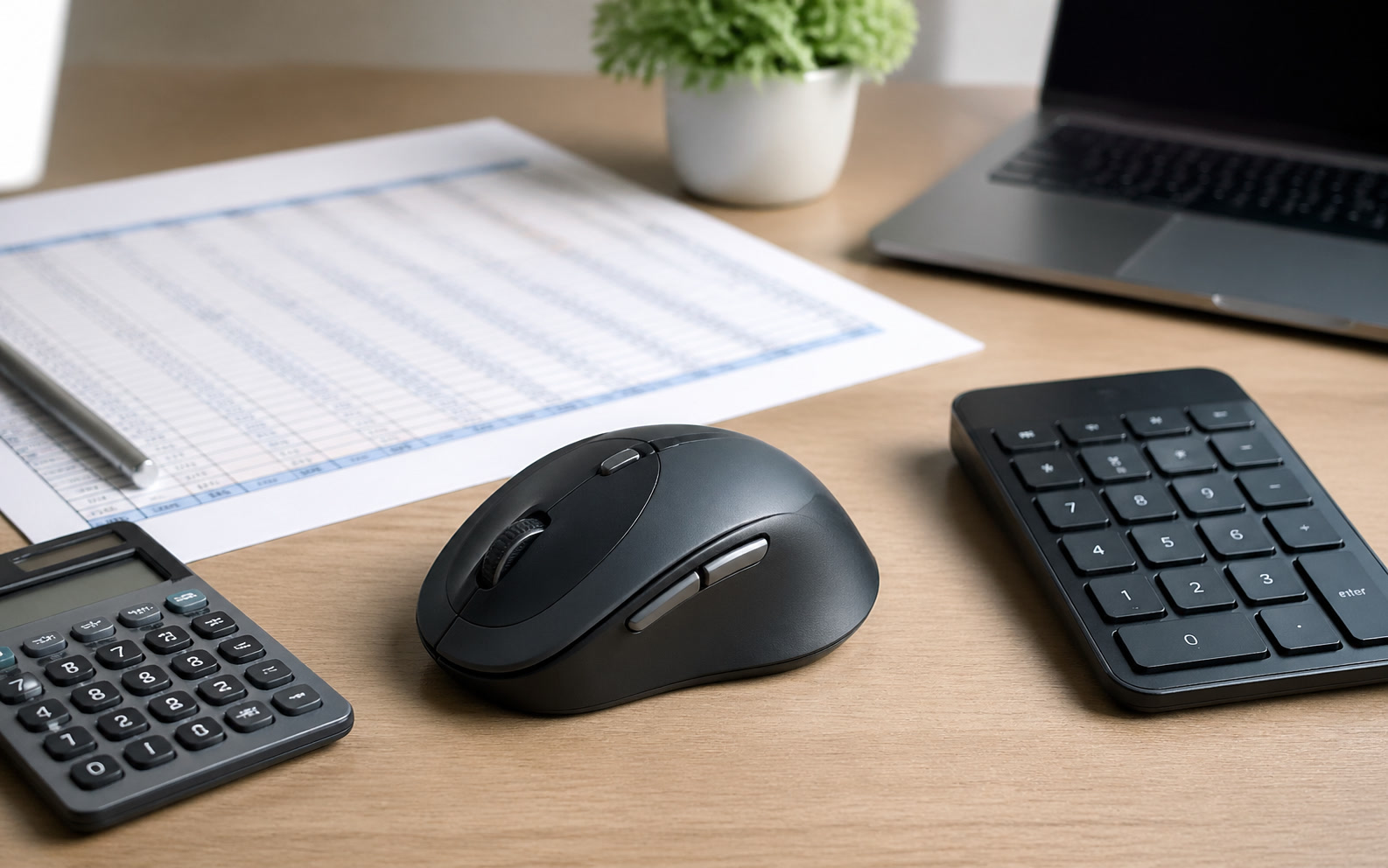
When outfitting a financial planning department, an accounting firm, or a data analytics team, the default peripherals supplied by IT rarely align with the physical realities of the work. Spreadsheet-heavy roles demand thousands of micro-movements daily, navigating dense grids that extend far beyond a single monitor's viewport. For operations managers and IT buyers, selecting a standardized mouse for these teams is not about aesthetics; it is a risk management decision. Poor peripheral choices lead to repetitive strain injuries, decreased navigational accuracy, and localized IT support tickets when proprietary software conflicts with security policies. A successful deployment requires hardware that accommodates heavy horizontal scrolling, survives the transition between hot-desks and conference rooms, and operates reliably without constant administrative intervention.
The Ergonomic Baseline for Fleet Deployment
Standard-issue ambidextrous mice are designed for universal compatibility and low procurement costs, not for eight-hour sessions of continuous cell selection. When analysts spend their days dragging formulas across thousands of rows, the pronation required by a flat mouse creates sustained tension in the forearm and wrist. Over a fiscal quarter, this tension frequently compounds into repetitive strain injuries, resulting in medical leave and disrupted project timelines. Addressing this requires migrating the team to contoured designs that encourage a more neutral wrist angle, shifting the physical burden from delicate tendons to the larger muscles of the arm.
However, deploying radical ergonomic shapes, such as vertical mice, across an entire department introduces significant adoption friction. Muscle memory is deeply ingrained, and users facing an immediate deadline will often abandon a vertical mouse if it slows their initial workflow. The most successful fleet deployments strike a balance, utilizing right-handed asymmetrical shapes that offer a pronounced thumb rest and a slight tilt—usually between twenty and thirty degrees. This provides a measurable ergonomic benefit without requiring a steep learning curve that frustrates personnel during critical reporting periods.
Accommodating left-handed users remains a persistent logistical challenge in standardized deployments. Because the most effective contoured designs are strictly handed, IT departments must maintain a parallel inventory of left-handed models or high-quality ambidextrous alternatives. Failing to account for this during the procurement phase inevitably leads to ad-hoc purchases of unvetted hardware, fragmenting the deployment and complicating future support. A unified procurement strategy explicitly includes these variations, ensuring all team members receive equivalent hardware regardless of their dominant hand.
Navigating the Grid: Horizontal Scrolling Mechanics
The defining characteristic of spreadsheet manipulation is the necessity of horizontal movement. Traditional scroll wheels handle vertical data effortlessly, but moving across columns AZ to ZZ using on-screen scrollbars breaks concentration and slows data entry. To eliminate this friction, specialized productivity mice incorporate dedicated hardware for horizontal navigation. The most effective implementation for heavy users is a secondary thumb wheel. Positioned directly above the thumb rest, this wheel allows users to pan across massive financial models smoothly, keeping the primary fingers anchored on the main actuation switches.
An alternative mechanism found in many enterprise-grade mice is the tilt-wheel, where the primary scroll wheel can be physically pushed to the left or right. While this simplifies the external design and reduces manufacturing complexity, it is often less precise for rigorous spreadsheet work. Tilt-wheels typically operate on a continuous scroll when held, making it easy to overshoot the target column. In contrast, a dedicated thumb wheel provides tactile, stepped feedback, allowing an analyst to move exactly three columns over without breaking visual focus on the data.
The primary scroll wheel itself also requires specific characteristics for data-heavy environments. The ability to toggle between a ratcheted, line-by-line scrolling mode and a frictionless, free-spinning mode is essential. Ratcheted scrolling provides the precision needed to select specific rows for auditing, while the free-spinning mode allows users to bypass thousands of rows of raw data in seconds. Standardizing on mice that offer this dual-mode functionality drastically reduces the physical scrolling fatigue experienced by teams managing extensive databases.
Programmability and IT Security Constraints
Modern productivity mice rely heavily on companion software to assign macros, adjust tracking sensitivity, and map application-specific shortcuts. For a financial analyst, mapping 'Paste Values' or 'Insert Row' to a dedicated thumb button removes hundreds of repetitive keystrokes from their daily routine. However, deploying this software across a corporate network often conflicts with strict IT security policies. Many peripheral configuration utilities require local administrator privileges to install and run, a non-starter in highly regulated environments like banking or healthcare.
To bridge the gap between user productivity and network security, procurement teams must evaluate how peripheral software is packaged and deployed. The ideal hardware ecosystem provides a configuration utility that can be deployed silently via Mobile Device Management tools, operating entirely in the background without prompting the end-user for updates or elevated permissions. Furthermore, the software should allow administrators to pre-configure application-specific profiles for spreadsheet software, deploying a standardized set of macros to the entire department simultaneously.
For environments where companion software is strictly prohibited, mice with onboard memory profiles offer a viable workaround. These devices can be configured once on an unrestricted machine, saving the macro assignments and sensitivity settings directly to the hardware. When the user plugs the mouse into their locked-down corporate workstation, the custom buttons function as programmed without requiring any local software installation. This hardware-level approach ensures that analysts retain their workflow optimizations even when navigating the strictest corporate security environments.
Connectivity Protocols in Hybrid Workspaces
The transition to hybrid work and hot-desking introduces severe connectivity challenges for wireless peripherals. In a dense office environment where fifty employees are operating in close proximity, relying solely on standard Bluetooth connections often results in signal interference, lag, and dropped inputs. For an analyst executing precise cell selections, a lagging cursor is unacceptable. To mitigate this, enterprise deployments should prioritize mice that utilize proprietary 2.4GHz USB receivers, which offer a more stable, encrypted connection and actively channel-hop to avoid local wireless congestion.
The reliance on USB receivers, however, creates a secondary logistical issue: lost dongles. When employees transition between their home office, a corporate hot-desk, and various conference rooms, small USB receivers are easily misplaced. Replacing a lost receiver often meant replacing the entire mouse, creating unnecessary electronic waste and procurement overhead. Modern enterprise hardware solves this by utilizing unified receivers, allowing a single dongle to pair with multiple devices and enabling IT to easily re-pair a mouse to a replacement receiver using a standalone utility.
Multi-device connectivity is another critical requirement for teams that frequently present data. Analysts often need to seamlessly transition from working on their primary multi-monitor workstation to presenting from a laptop in a boardroom. Mice equipped with hardware toggles that switch between multiple paired devices—whether via Bluetooth or separate USB receivers—allow users to bring their preferred peripheral to the meeting without the friction of unpairing and repairing. This seamless transition keeps meetings on schedule and ensures the user retains their customized macros while presenting.
Power Management and Fleet Longevity
Battery management is a persistent operational hurdle when deploying hundreds of wireless peripherals. A dead mouse during a critical reporting sprint causes immediate downtime, forcing the user to hunt for replacement batteries or revert to a subpar backup device. Devices utilizing disposable AA batteries offer months of longevity but require the facilities or IT team to maintain a constant inventory of replacements. Consequently, the industry standard has shifted toward integrated lithium-ion batteries, though these introduce their own set of workflow considerations.
For rechargeable deployments, the position and standard of the charging port are paramount. The device must utilize a standard USB-C connection, aligning with the charging cables already present for laptops and mobile devices. More importantly, the port must be positioned at the front of the mouse, allowing it to function as a standard wired peripheral while charging. Designs that place the charging port on the underside of the device render the mouse entirely unusable during the charging cycle, a design flaw that is incompatible with the continuous demands of financial operations.
Beyond battery life, fleet longevity is dictated by the physical durability of the hardware. The primary mechanical switches and the polytetrafluoroethylene glide skates on the underside of the mouse are the first components to degrade under heavy use. When evaluating a model for department-wide rollout, operations managers should verify the rated lifespan of the primary clicks—typically measured in tens of millions of actuations—and ensure the glide skates are thick enough to withstand years of use on various desk surfaces without wearing down to the plastic chassis.
Decision checklist
- Verify that the peripheral configuration software can be deployed via MDM without requiring end-users to have local administrator rights.
- Confirm the presence of a dedicated horizontal scrolling mechanism, prioritizing thumb wheels over tilt-click primary wheels for data precision.
- Ensure the device features a front-facing USB-C port that allows for continuous wired operation while the internal battery is charging.
- Audit the office environment for Bluetooth congestion to determine if proprietary 2.4GHz encrypted USB receivers are necessary for stable tracking.
- Establish a parallel procurement protocol to provide equivalent contoured hardware for left-handed team members.
Who should skip this
Teams whose primary software stack consists of text editors, basic CRM interfaces, or presentation software do not require the specialized horizontal navigation and macro capabilities discussed here. If the daily workflow rarely involves panning across datasets wider than a standard monitor viewport, investing in heavy, feature-dense productivity mice adds unnecessary weight and administrative overhead. These teams are better served by lightweight, ambidextrous wireless mice that prioritize portability and simplicity over extensive programmability.
Maintenance note
Maintaining a fleet of productivity mice requires periodic attention to prevent tracking degradation and switch failure. IT or facilities teams should schedule quarterly cleanings using compressed air to clear dust from the optical sensor housing and the gaps around the scroll wheel, which frequently accumulate debris that causes erratic scrolling. Additionally, users should be instructed to clean the glide skates with isopropyl alcohol wipes to remove desk grime, ensuring smooth physical movement and reducing the micro-stutters that frustrate precise cell selection.
The Connected Desk funds its editorial operations through reader support. When you procure workspace hardware through the links in our deployment guides, we may earn an affiliate commission. This operational model does not dictate our hardware recommendations, which are based entirely on deployment viability, administrative overhead, and ergonomic performance.
FAQ
Do spreadsheet users need a high polling rate mouse?
High polling rates, such as 1000Hz or above, are designed for competitive gaming to reduce input latency by milliseconds. For spreadsheet navigation, a standard 125Hz polling rate is entirely sufficient. Higher polling rates unnecessarily drain the battery and provide no tangible benefit for navigating cell grids or executing macros.
Can these mice track accurately on glass conference tables?
Standard optical sensors struggle on transparent surfaces because they rely on surface irregularities to track movement. If your team frequently works in modern conference rooms with glass tables, you must specify mice equipped with darkfield or laser-grade sensors specifically engineered to map the microscopic dust and scratches on glass surfaces.
How do we handle macro programming if our company completely blocks USB data transfer?
In environments with strictly locked-down USB ports, you cannot use wired connections or USB receivers to transfer macro profiles. The deployment must rely on Bluetooth connectivity, and any required companion software must be vetted by your security team and deployed directly through your internal software center to manage the Bluetooth peripheral.
What causes the scroll wheel to jump in the opposite direction?
Scroll wheel jumping is typically caused by dust or hair interfering with the optical encoder inside the wheel assembly, or by degradation of a mechanical encoder. While blowing compressed air into the wheel gap can temporarily resolve optical encoder issues, mechanical encoder failure requires replacing the mouse, which should be factored into your three-year hardware lifecycle planning.