USB-C Hubs for Hotel Desks
Field notes for USB-C hubs for hotel desks: what changes during calls, handoffs, travel days, and long focus blocks, without turning the desk into a showroom.
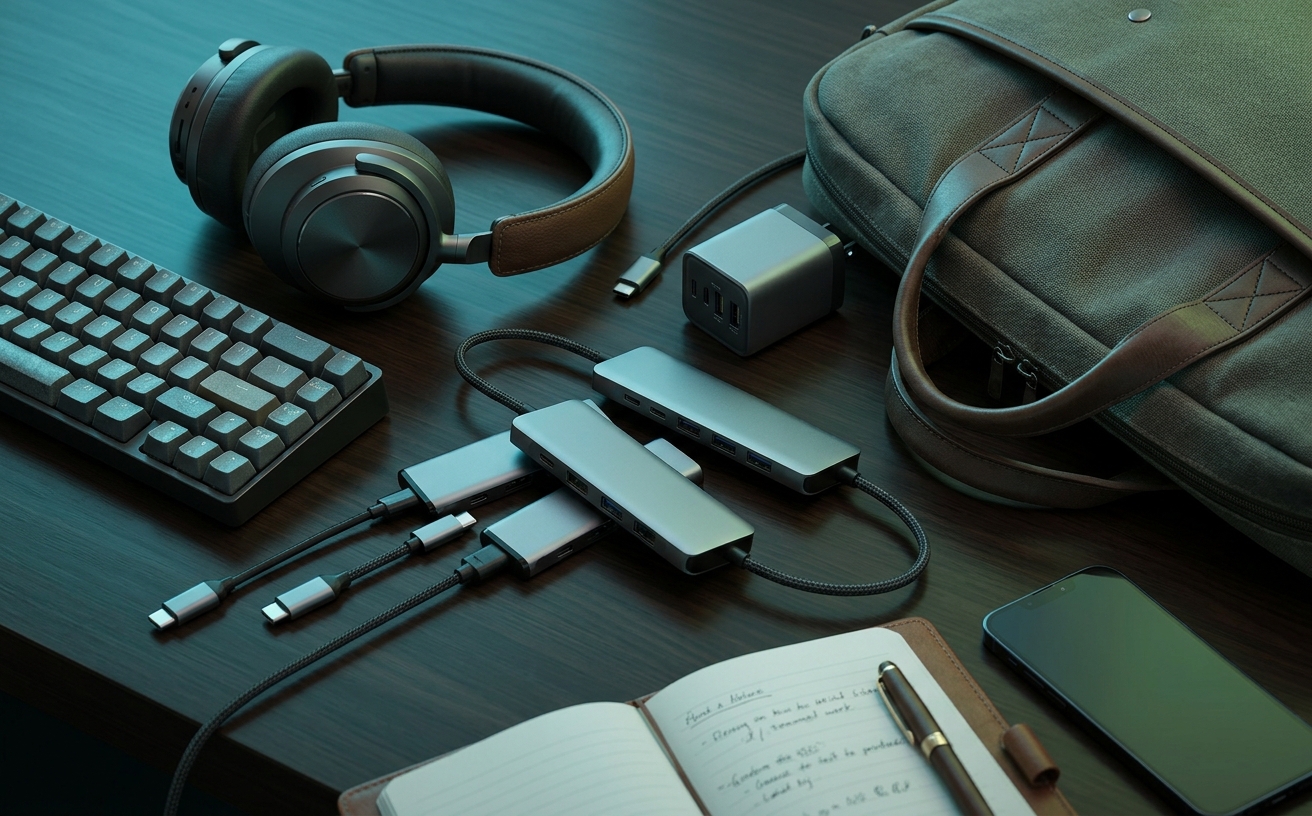
Hotel desks represent the ultimate compromise in workspace design. They are frequently shoved into poorly lit corners, built to bizarrely shallow dimensions, and surfaced in slippery laminates that offer zero traction for your equipment. When you arrive after a demanding travel day, facing an inbox full of urgent requests and impending video calls, that tiny slab of wood has to instantly transition into a functional command center. A USB-C hub is the central nervous system of this transformation, but selecting the right one for a highly constrained environment requires looking far beyond simple port counts. It demands an understanding of spatial geometry, cable tension, and power distribution. The goal is to build a predictable, reliable setup that allows you to execute deep focus blocks and handle routine professional maintenance without constantly fighting your physical environment.
Form Factor and the Shallow Desk Problem
The physical geometry of the average hotel desk is inherently hostile to complex hardware setups. These surfaces are often less than twenty-four inches deep, and a significant portion of that limited real estate is usually dominated by an immovable, heavy-based lamp or a bolted-down room service menu. In this environment, a USB-C hub must minimize its footprint while remaining accessible. Large, desktop-class docking stations are entirely impractical for travel, but even among portable hubs, the physical shape dictates how effectively you can utilize the remaining desk space.
Travelers often debate between flush-mount hubs that snap directly into the side of a laptop and tethered inline hubs. While flush-mount designs appear cleaner by eliminating the host cable, they present severe spatial drawbacks on a small desk. They force all peripheral connections to protrude rigidly from the immediate side of the machine, instantly consuming the lateral space required for a physical mouse or a paper notebook. Furthermore, in cramped quarters where you are constantly shifting your posture or moving items, a flush-mount hub acts as a rigid lever; an accidental bump against a thick HDMI cable can transfer damaging physical stress directly to your laptop's internal logic board.
The ideal form factor for a constrained desk is a low-profile, tethered inline hub. This design allows the laptop to be pushed further back toward the wall or elevated on a travel stand, while the hub itself rests flat on the desk surface. By physically separating the port cluster from the laptop chassis, you gain the flexibility to tuck the hub behind the screen or alongside the heavy hotel lamp, keeping the rigid, unyielding peripheral cables completely out of your primary working zone.
Cable Management and Tether Length
Hotel power outlets and data ports are rarely placed where a working professional actually needs them. They are typically built into the base of a lamp, hidden beneath the desk surface, or positioned awkwardly on the wall behind a heavy piece of furniture. Because you cannot control the room's architecture, your USB-C hub must provide the mechanical flexibility to bridge the gap between your laptop and the room's infrastructure without creating a chaotic web of cables.
The length of the hub's host tether is a critical, frequently overlooked specification. Short-tether hubs, featuring cables under six inches, severely limit your setup options. If you elevate your laptop on a portable ergonomic stand to save desk space and improve your webcam angle, a short tether will force the hub to dangle in mid-air. This suspension places constant downward tension on the laptop's USB-C port and causes the hub to swing unpredictably, increasing the risk of accidental disconnections during critical file transfers or client meetings.
Opting for a hub with a longer, flexible tether—ideally ten to twelve inches—or a completely removable host cable provides the necessary slack to route the connection intelligently. A longer tether allows you to anchor the hub flat on the desk surface, regardless of how high your laptop is elevated. This stability is essential when connecting stiff cables, such as thick HDMI cords or rigid Ethernet lines, which possess their own physical memory and will easily drag a lightweight, dangling hub off the edge of a small table.
Power Delivery Passthrough and Charger Consolidation
Frequent travel requires packing light, making wall chargers and available electrical outlets premium commodities. Hotel desks notoriously lack sufficient power receptacles, often providing only a single usable outlet. A USB-C hub equipped with Power Delivery (PD) passthrough becomes a vital tool for charger consolidation, eliminating the need to plug multiple individual power bricks into the wall or rely on questionable hotel USB-A charging ports.
When evaluating power passthrough, the mathematical realities of wattage distribution are absolute. You must look for hubs supporting at least 85W to 100W passthrough. The hub's internal controllers require power to operate—typically drawing between 10W and 15W simply to manage data routing, display output, and network traffic. If you connect a standard 65W travel charger to the hub, the laptop may only receive 50W. While sufficient for idle charging, this deficit will cause the laptop battery to slowly drain during heavy focus blocks involving video rendering, large dataset processing, or continuous video conferencing.
By running a single, high-capacity Gallium Nitride (GaN) charger directly into a high-wattage hub, you create a centralized power distribution node. This single-cable setup powers the laptop, drives a portable monitor, and charges a smartphone simultaneously from one hotel outlet. This strategy drastically reduces the visual and physical clutter on the desk surface, transforming a chaotic tangle of individual charging wires into a streamlined, highly efficient workspace.
Display Output for Portable Monitors and Room TVs
Expanding your screen real estate in a hotel room usually involves one of two strategies: deploying a portable travel monitor or hijacking the room's television to use as a secondary display. Both approaches require specific display protocols and physical port layouts from your USB-C hub to function effectively in a confined space.
If you rely on HDMI to connect to the hotel television, the technical specifications of the hub's port are non-negotiable. Ensure the HDMI port explicitly supports 4K resolution at 60Hz. Many compact hubs default to 4K at 30Hz to save on internal bandwidth costs. A 30Hz refresh rate introduces a highly noticeable, frustrating cursor lag that feels like dragging your mouse through mud, rapidly inducing eye strain and fatigue during long working sessions.
Cable routing for external displays in tight spaces requires careful consideration of the hub's port placement. Rear-facing display ports on the hub are vastly superior to side-facing ones. Thick, shielded HDMI cables require a wide turning radius. If the port is located on the side of the hub, the cable will immediately project outward, eating into your lateral desk space and potentially pushing your coffee cup, mouse, or reference documents off the edge. A rear-facing port directs that rigid cable straight back toward the wall, preserving your usable work area.
Thermal Management in Unventilated Spaces
USB-C hubs generate a significant amount of heat, particularly when simultaneously handling high-wattage power passthrough, gigabit Ethernet traffic, and external display rendering. In a cramped hotel setup, the hub is rarely placed in an optimal, well-ventilated position. It is often pushed into a back corner, trapped behind a laptop stand, or inadvertently buried under a pile of printed documents.
While aluminum enclosures are the industry standard for durability, the internal thermal design and surface area matter far more for sustained performance. Hubs that rely entirely on a small, smooth chassis as their primary heatsink will become uncomfortably hot to the touch under heavy loads. If placed flat against a laminated hotel desk, this trapped heat can cause the hub's internal components to thermally throttle. When a hub throttles, you will experience dropped Ethernet connections, flickering external displays, or sudden disconnections of external solid-state drives.
To mitigate thermal issues in unventilated spaces, select a hub with a slightly larger chassis than strictly necessary, or one featuring corrugated surface ridges that increase the overall surface area for passive cooling. When setting up your desk, make a conscious effort to elevate the hub slightly or ensure it sits in open air rather than tucked tightly against the fabric back of a desk chair. Maintaining proper thermal headroom ensures connection stability when you are in the middle of a critical client presentation.
Decision checklist
- Verify the host cable length accommodates your specific travel laptop stand without suspending the hub in mid-air.
- Confirm the Power Delivery specification explicitly states the passthrough wattage minus the hub's operational draw.
- Check for rear-facing display ports to prevent thick HDMI cables from encroaching on your lateral desk space.
- Ensure the USB-A ports offer at least 5Gbps data transfer speeds, rather than legacy USB 2.0 speeds meant only for basic peripherals.
- Pack a dedicated, short braided HDMI cable specifically for connecting the hub to the hotel television without excess coiling.
Who should skip this
Professionals who travel exclusively with a laptop and no wired peripherals, or those who prefer working entirely from the hotel bed or lounge chair, should bypass this hardware. If your workflow relies entirely on cloud storage, a wireless Bluetooth mouse, and the laptop's internal battery for short bursts of work between meetings, adding a USB-C hub introduces unnecessary weight, thermal output, and complexity to your everyday carry.
Maintenance note
Inspect the primary USB-C host connector periodically for bent pins or accumulated lint from the bottom of your travel bag, as a physically compromised connection is the primary cause of intermittent power drops and external drive disconnections. Clean the ports with a quick burst of compressed air before long trips, and store the hub in a dedicated protective pouch to prevent the sharp metal chassis from scratching your laptop or bending the tether cable at severe angles during transit.
The Connected Desk funds its independent editorial operations through reader support. When you purchase workspace equipment through links on our site, we may earn a commission. This financial mechanism does not influence our hardware evaluations, architectural assessments, or spatial design recommendations.
FAQ
Why does my external monitor flicker when connected through the hub at a hotel?
Flickering is typically caused by insufficient power delivery, thermal throttling, or a sub-standard HDMI cable. Ensure your wall charger provides enough total wattage to power the laptop, the hub's internal operations, and the display simultaneously. Additionally, verify your HDMI cable supports the required bandwidth for your specific resolution and refresh rate.
Can I use the hotel TV as a monitor through my USB-C hub?
Yes, provided the hub has an HDMI output and the hotel television is not locked down by the hospitality provider to prevent input switching. You will need to bring your own HDMI cable and may need to manually adjust your laptop's display scaling in your operating system settings, as television panels have drastically different pixel densities than standard desktop monitors.
Does the hub drain my laptop battery if left plugged in without wall power?
Yes. Even when sitting completely idle, the internal controllers of a USB-C hub draw a small but constant amount of power—typically between 5W and 15W—directly from the host device. You should always disconnect the hub when working exclusively on battery power to maximize your laptop's runtime.
Are flush-mount hubs better for small hotel desks than tethered hubs?
Generally, no. While flush-mount hubs look visually cleaner by eliminating the host cable, they apply dangerous physical stress to the laptop's internal ports if bumped in a tight space. They also force all of your peripheral cables to plug in directly beside your machine, which clutters your immediate physical workspace far more than a tethered hub routed toward the back of the desk.