Webcams that Flatter without Fuss
A desk audit for webcams that flatter without fuss, focused on comfort, recovery time, shared-work constraints, and the details that reduce Monday-morning friction.
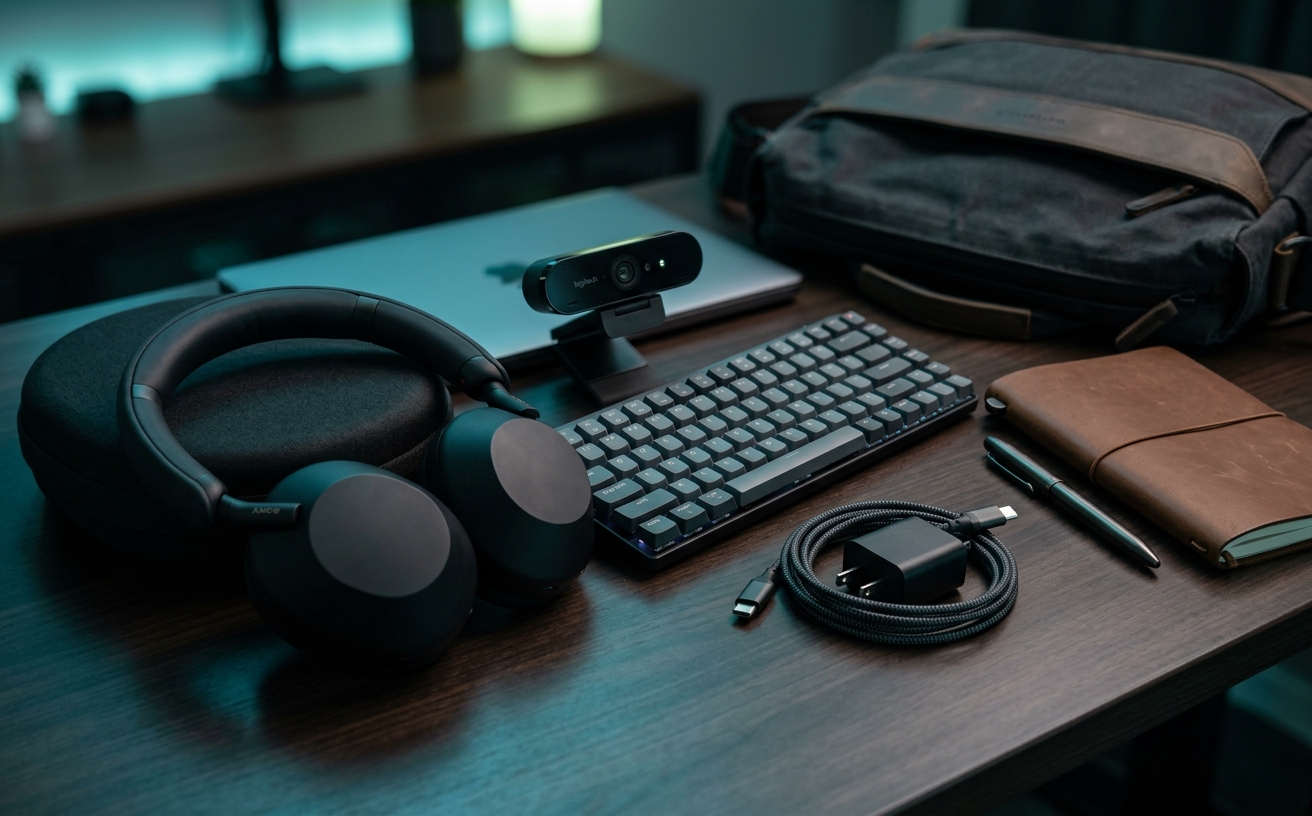
The modern knowledge worker spends a disproportionate amount of time transmitting a digital reflection of themselves across the globe. When your schedule is packed with back-to-back meetings, deep focus blocks, and the occasional travel day, the last thing you need is a peripheral that demands constant babysitting. A truly effective workspace tool should operate invisibly, handling the complex variables of exposure, color temperature, and focus without requiring your active intervention. We are looking for hardware that flatters naturally, compensating for the harsh overhead lights of a hotel room or the shifting afternoon shadows in a home office, all without forcing you to open a bloated companion app or adjust a ring light. This guide examines the structural and technical elements that separate high-maintenance cameras from those that simply plug in, power on, and present you clearly, allowing you to reserve your mental energy for the actual work at hand.
The Sensor Size Imperative
The consumer technology market has spent years conditioning buyers to equate resolution with quality, heavily marketing 4K capabilities as the ultimate metric of a good camera. However, pushing eight million pixels onto a tiny, low-quality sensor results in a noisy, grainy image, particularly in the less-than-ideal lighting conditions common to home offices. The physical dimensions of the CMOS sensor dictate how much light the camera can process per frame, and light gathering is the single most critical factor in producing a clean, professional video feed.
A larger sensor naturally separates the subject from the background with a subtle, optical depth of field. This physical characteristic avoids the artificial, jagged edges associated with software-based background blur, providing a highly professional look without taxing your computer's processor. By capturing more light natively, a large sensor ensures that your skin tones remain accurate and your image remains sharp even when the sun goes down or the office blinds are drawn.
This physical capability directly impacts the daily friction of video calls. When the hardware captures enough light natively, you are no longer forced to deploy glaring desktop key lights or complex three-point lighting setups just to be visible on a morning stand-up call. The camera does the heavy lifting, adapting to the ambient light you already prefer to work in, which means you can sit down and start your meeting without running through a lighting checklist.
Exposure and Color Autonomy
A common frustration with standard webcams is the tendency to look washed out, overly saturated, or heavily shadowed depending on the time of day. Poorly calibrated cameras meter the entire scene evenly, meaning a bright window behind you or a stark white wall will cause the camera to dramatically darken your face. You are left constantly adjusting your seating position or pulling shades to accommodate the hardware's limitations.
The solution lies in face-priority auto-exposure and dedicated image signal processors. Premium options utilize onboard hardware to identify human subjects and adjust the exposure specifically for skin tones, ignoring the irrelevant brightness of a desk lamp or the glare from a secondary monitor. This ensures that as you lean in, lean back, or as the natural light shifts throughout the afternoon, your face remains properly illuminated and color-accurate.
Crucially, this processing must happen on the device itself. Relying on background software to correct color and exposure drains your computer's resources, spins up laptop fans, and frequently breaks when operating systems update. Hardware-level processing ensures that whether you plug into a desktop workstation, a travel laptop, or a secure corporate machine that prohibits third-party software installations, your image remains perfectly consistent.
Mounting Mechanics and Desk Integration
The physical design of a webcam mount is often treated as an afterthought by manufacturers, yet it dictates the daily usability of the device. A poorly designed clip will obscure the top bezel of a modern monitor, or worse, lack the tension required to stay put when you adjust your standing desk from sitting to standing heights. Look for mounts with articulated, rubberized grips that provide a secure, non-destructive hold on various monitor profiles.
Beyond the standard monitor clip, the inclusion of a standard 1/4"-20 tripod thread is non-negotiable for a versatile, long-term setup. This thread allows you to mount the camera on a dedicated desk arm, a light stand, or a compact travel tripod. Utilizing a dedicated mount provides the exact eye-level angle required for flattering facial geometry, allowing you to escape the severe, unflattering high or low angles dictated by laptop screens and fixed external displays.
Privacy covers also play a significant role in the physical maintenance of the device. Magnetic or sliding physical shutters provide absolute certainty that the lens is blocked during focus blocks, but they must be designed so that actuating them does not force the camera out of alignment. A well-engineered camera allows you to open and close the privacy shutter with a single finger without requiring you to re-frame your shot before your next call.
The Travel and Transition Factor
For professionals who split their time between a home office, corporate headquarters, and client sites, the hardware must transition smoothly between environments. Hardwired cables are a primary point of failure; they fray in transit, limit your routing options on a permanent desk, and render the entire unit useless if damaged. A detachable USB-C connection is mandatory, allowing you to use a long cable for a clean desk setup and a short, braided cable when working from a coffee shop.
The physical footprint of the device matters heavily when packing. Bulky, unusually shaped cameras are difficult to slip into a standard tech pouch and are more prone to taking damage in a crowded backpack. A streamlined, cylindrical or low-profile rectangular chassis withstands the rigors of travel without requiring a dedicated, bulky protective case, ensuring you actually want to bring it with you on the road.
Connection protocols must be universally recognized to eliminate setup friction. The camera should utilize standard USB Video Class drivers, meaning it is instantly recognized by macOS, Windows, and ChromeOS without the need to download proprietary drivers. This plug-and-play nature is what allows you to borrow a colleague's machine or switch to a new laptop without spending fifteen minutes troubleshooting video inputs before a critical presentation.
Focal Length and Framing
The current trend toward ultra-wide-angle lenses in webcams is highly detrimental to a flattering, professional image. Fields of view exceeding 90 degrees introduce severe barrel distortion, subtly enlarging the nose and stretching the edges of the frame, while simultaneously capturing every distracting detail of the room behind you. Wide angles are designed for huddle rooms, not individual workstations.
The ideal focal length for a single-person video call sits tightly between 70 and 78 degrees. This narrower field of view mimics a traditional portrait photography lens, flattening facial features in a flattering manner and naturally cropping out peripheral clutter. It forces the viewer's attention exactly where it belongs: on you, rather than the bookshelf or doorway in the background.
While digital zoom can artificially narrow a wide field of view, it does so by cropping into the sensor, immediately degrading image resolution and introducing visual noise. A camera that natively shoots at a flattering, narrow angle requires zero software intervention. This ensures maximum image fidelity and completely removes the fuss of adjusting digital framing sliders before every single call.
Decision checklist
- Look for a 1/2-inch or larger CMOS sensor to ensure adequate light capture, rather than focusing purely on 4K resolution labels.
- Verify the camera uses a detachable USB-C cable to allow for easy replacement, custom cable routing, and safe travel packing.
- Ensure the mounting clip features a standard 1/4"-20 tripod thread to enable alternative desk positioning via a dedicated camera arm.
- Confirm the native field of view sits between 70 and 78 degrees to avoid the fish-eye distortion common in ultra-wide lenses.
- Check that the camera stores its exposure and white balance settings on the device itself, bypassing the need for companion software running in the background.
Who should skip this
This guide is built for individual professionals seeking a reliable, high-quality image with minimal daily intervention. You should skip this approach if you require a multi-camera streaming setup, need the extreme, cinematic depth of field provided only by a dedicated mirrorless camera and prime lens, or if you exclusively take calls from a perfectly controlled studio environment where the lighting never changes.
Maintenance note
Maintaining a premium webcam requires minimal but consistent effort. Keep a microfiber cloth at your desk and wipe the lens gently once a week to remove accumulated dust and accidental fingerprints, which can cause light blooming and reduce sharpness. When managing firmware updates, only apply them during scheduled downtime at the end of the week, never in the minutes leading up to a video call, to avoid unexpected settings resets or compatibility issues.
The Connected Desk is supported by our readers. When you purchase through links on our site, we may earn an affiliate commission. Our editorial recommendations are based on independent research and professional workspace requirements, not manufacturer partnerships.
FAQ
Does a 4K webcam guarantee a better image than a 1080p model?
No. Sensor size and lens quality dictate light capture and color accuracy far more than pixel count. A 1080p camera with a large sensor will consistently outperform a 4K camera with a tiny sensor, especially in standard, unoptimized room lighting.
Why does my face look dark when sitting in front of a window?
Backlighting confuses standard camera metering, causing the lens to adjust for the bright window rather than your face. To fix this without closing the blinds, you need a camera with face-priority auto-exposure or robust hardware-level HDR capabilities.
Do I need to install the manufacturer's companion software?
Ideally, no. The most efficient, fuss-free cameras save your preferred settings directly to onboard memory. This allows for true plug-and-play operation, keeping your computer's processing power free for your actual work applications.
How do I stop the camera from constantly refocusing on my hands when I talk?
Continuous auto-focus can be highly distracting. The best solution is to disable it in favor of a fixed focal length set to your seating position. Alternatively, choose a camera that utilizes phase-detection auto-focus, which locks onto subjects much faster and more reliably than older contrast-based systems.